WP Project Manager has been around for 14 years. It was one of the first full project management plugins built for WordPress, with tasks, milestones, discussions, files, and time tracking inside your dashboard.
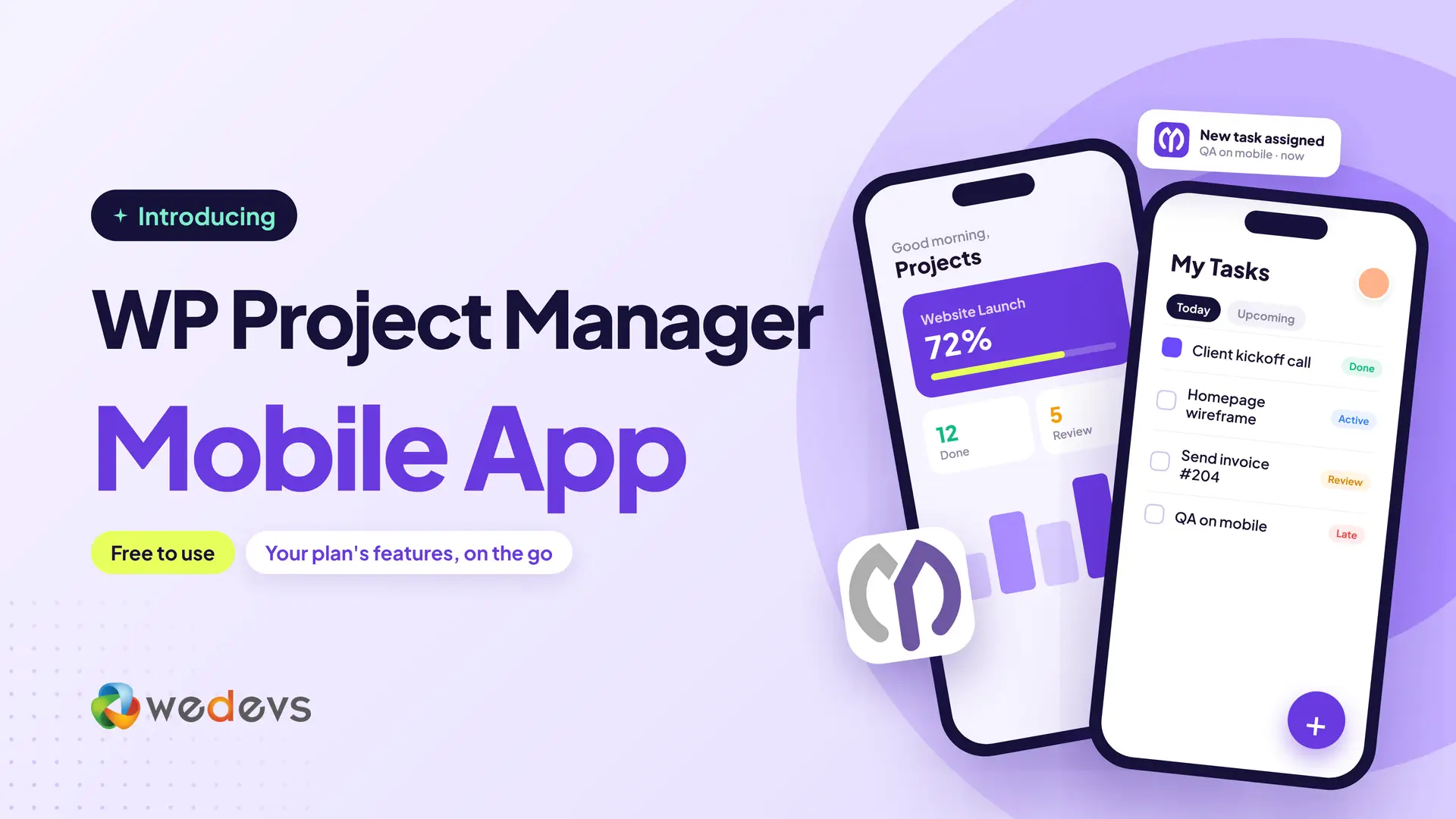
In May 2026, we released version 4.0, a complete revamp of the plugin. Since then, we've shipped eleven updates. Version 4.1.2 is now live, and the plugin has changed a lot since the first revamp post: a new dashboard, project templates, a free Kanban board, Google Drive, threaded comments, and many security fixes.
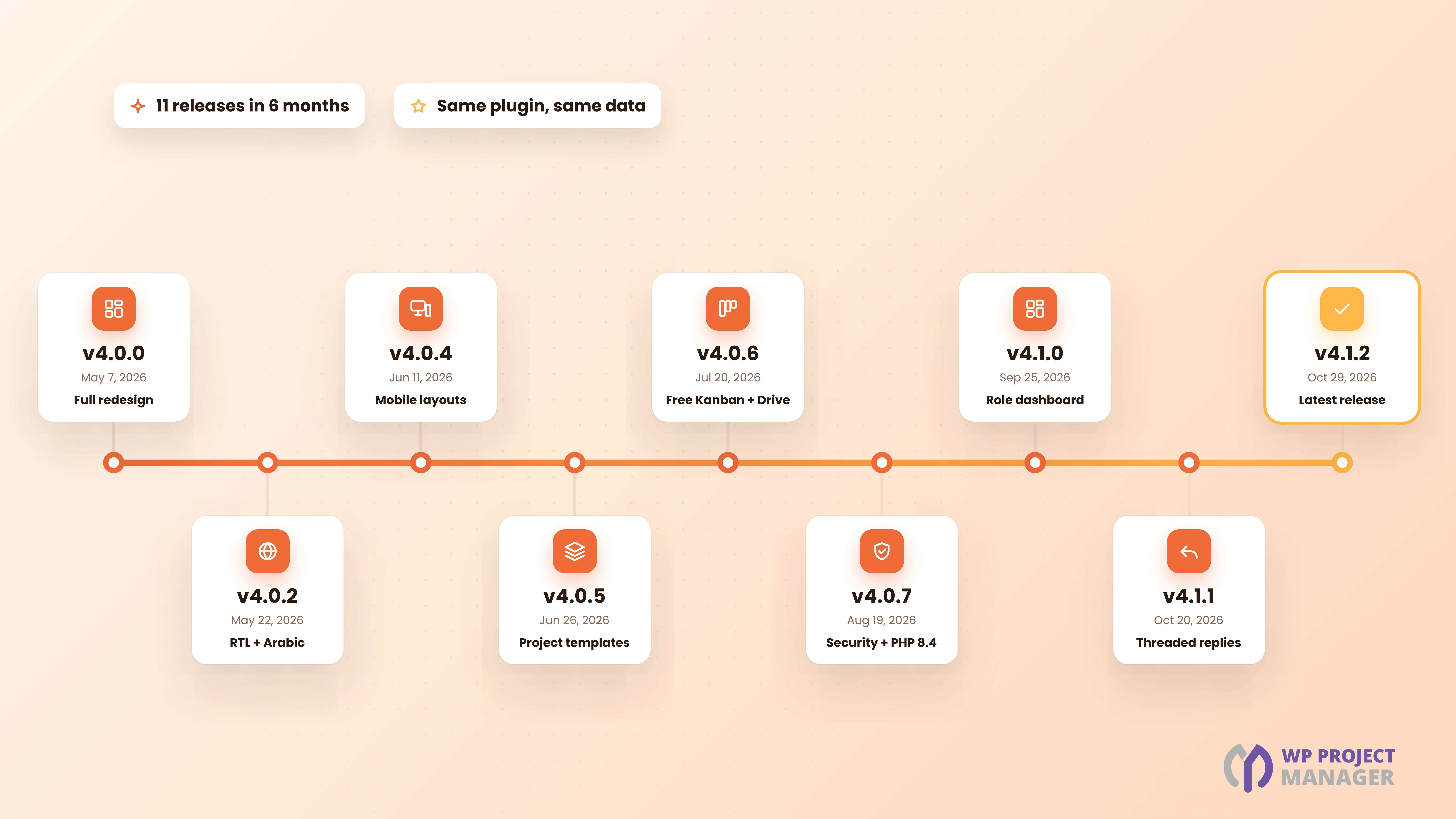
This post is the updated story of the revamp. We'll explain why we rebuilt the plugin, what changed from 4.0 to 4.1.2, and what the new WP Project Manager looks like today. Let's dive in!
Why a Revamp Was Needed for WP Project Manager
Project management tools have changed a lot in the last few years. Apps like ClickUp, Asana, and Notion set new expectations for speed and design. New WordPress plugins also entered the space.
We'll be honest. For a while, WP Project Manager didn't keep up. Bug reports piled up on GitHub, fixes were slow, and the interface started to look dated. Our rating on WordPress.org dropped to 3.7, and we took that as a clear warning.
So we decided not to patch the old plugin. We rebuilt it.
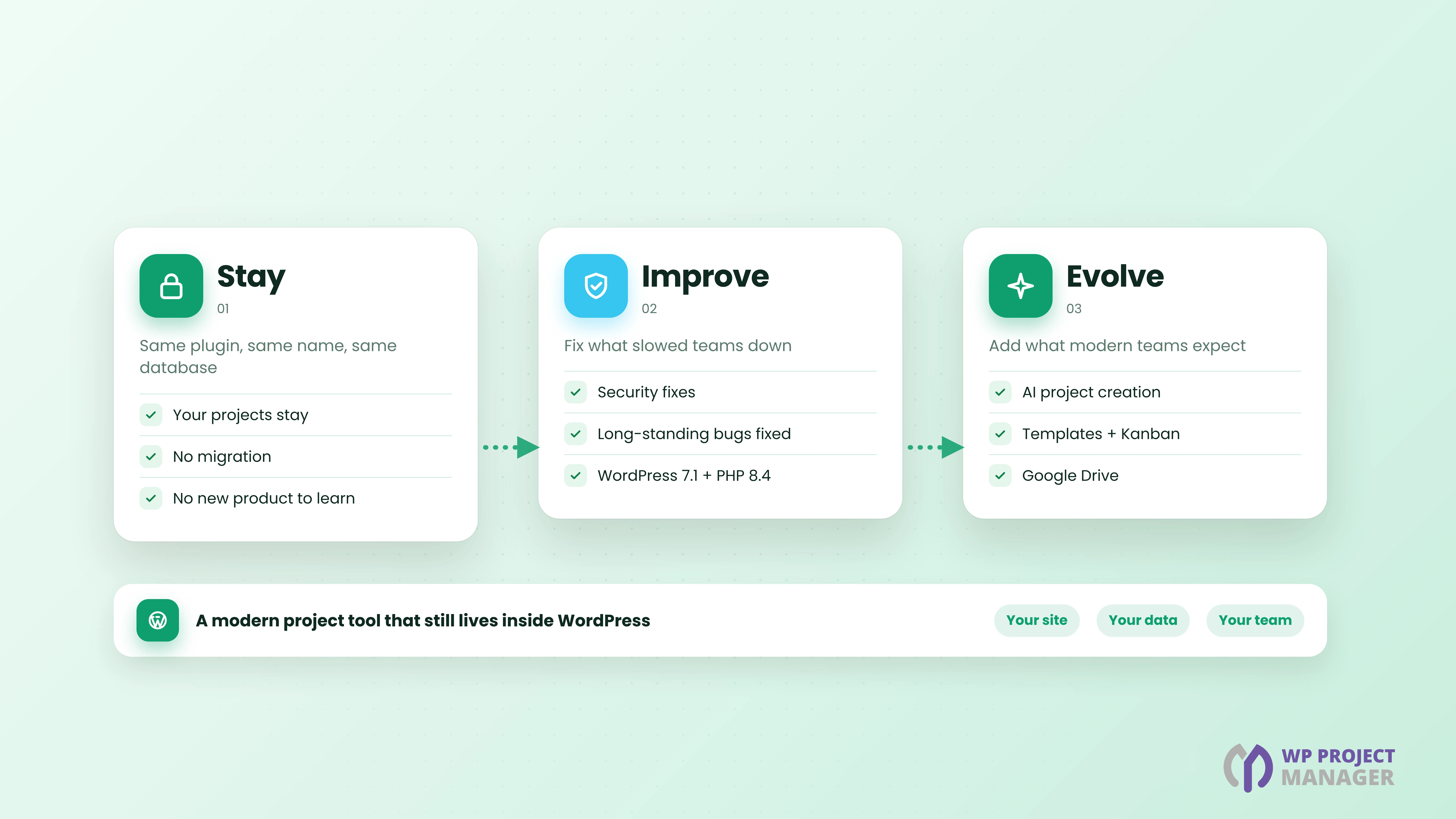
Our Philosophy: Stay, Improve, Evolve
We didn't rebrand or start a new product. Thousands of teams already trust WP Project Manager with their work, so we kept the plugin, the data, and the name.
Our goal was simple: make it feel like a modern cloud app, while it stays inside WordPress, on your own site, with your own data.
What Changed from v4.0 to v4.1.2
Here's a quick look at the main releases since the revamp. Each one built on the last.
| Version | Released | What it brought |
|---|---|---|
| 4.0.0 | May 7, 2026 | The full redesign: sidebar navigation, a new task panel, a richer editor, grid and list views, project duplication, AI project creation, and frontend shortcodes |
| 4.0.2 | May 22, 2026 | Right-to-left (RTL) layout with Arabic translation, better copy and paste in the editor, and inline attachment editing |
| 4.0.4 | Jun 11, 2026 | Better layouts on mobile and small screens |
| 4.0.5 | Jun 26, 2026 | Project templates, and action buttons that hide when a user can't use them |
| 4.0.6 | Jul 20, 2026 | Google Workspace integration with Google Drive, and the Kanban board moved to the free version |
| 4.0.7 | Aug 19, 2026 | Important security fixes, plus support for WordPress 7.1 and PHP 8.4 |
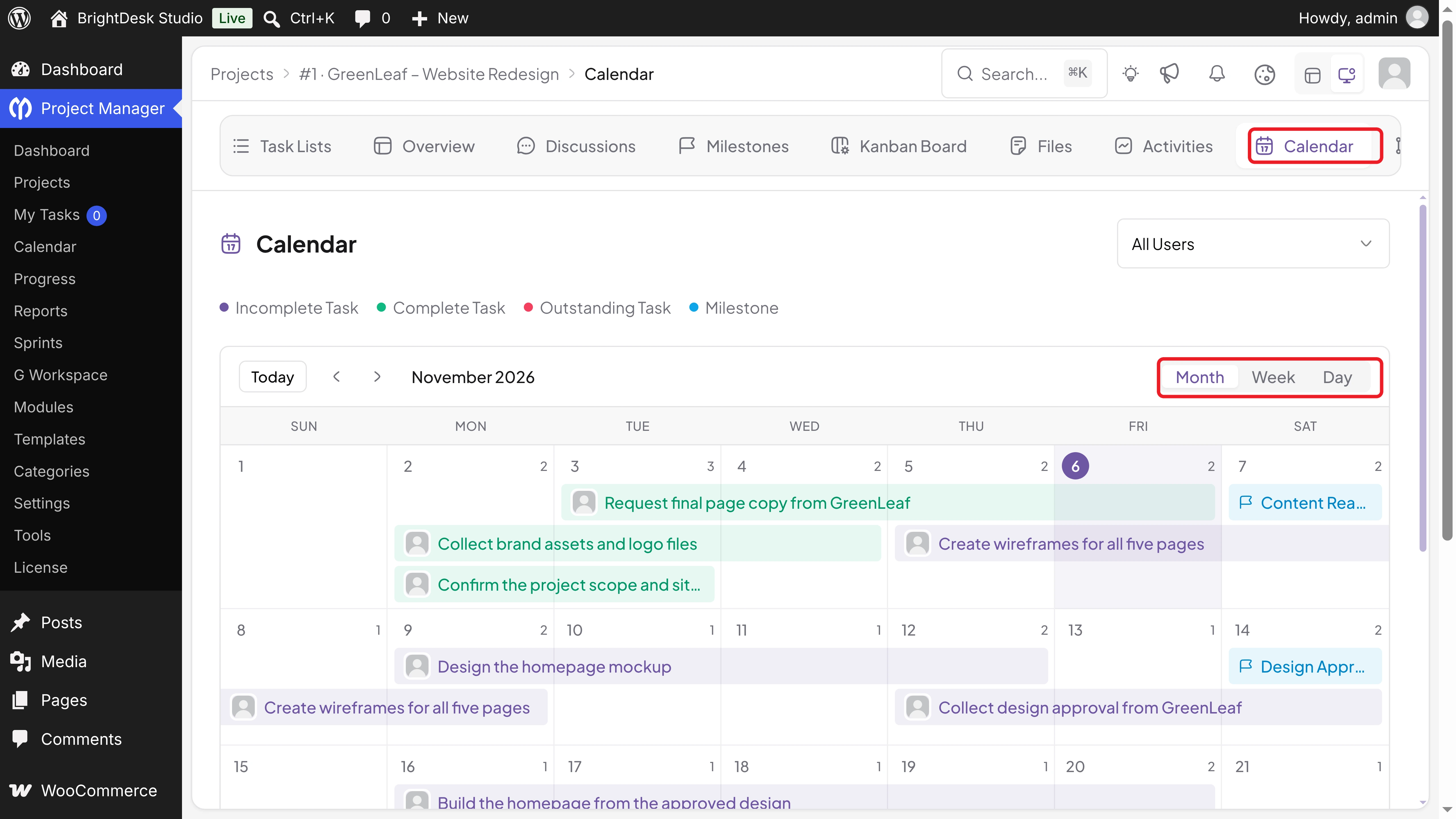
| 4.1.0 | Sep 25, 2026 | A role-based dashboard, project archiving, more task filters, Kanban backgrounds, a project Calendar tab, and Markdown paste |
| 4.1.1 | Oct 20, 2026 | Threaded replies in comments, faster comment loading, and security fixes |
| 4.1.2 | Oct 29, 2026 | A security fix and support for SQLite sites such as WordPress Playground |
Note: Version 4.1.0 and newer need WP Project Manager Pro 4.1.0 or newer if you use Pro. Update both plugins together.
What's New in the Revamped WP Project Manager
Let's walk through the biggest changes, with screenshots from version 4.1.2.
1. A Completely New Interface
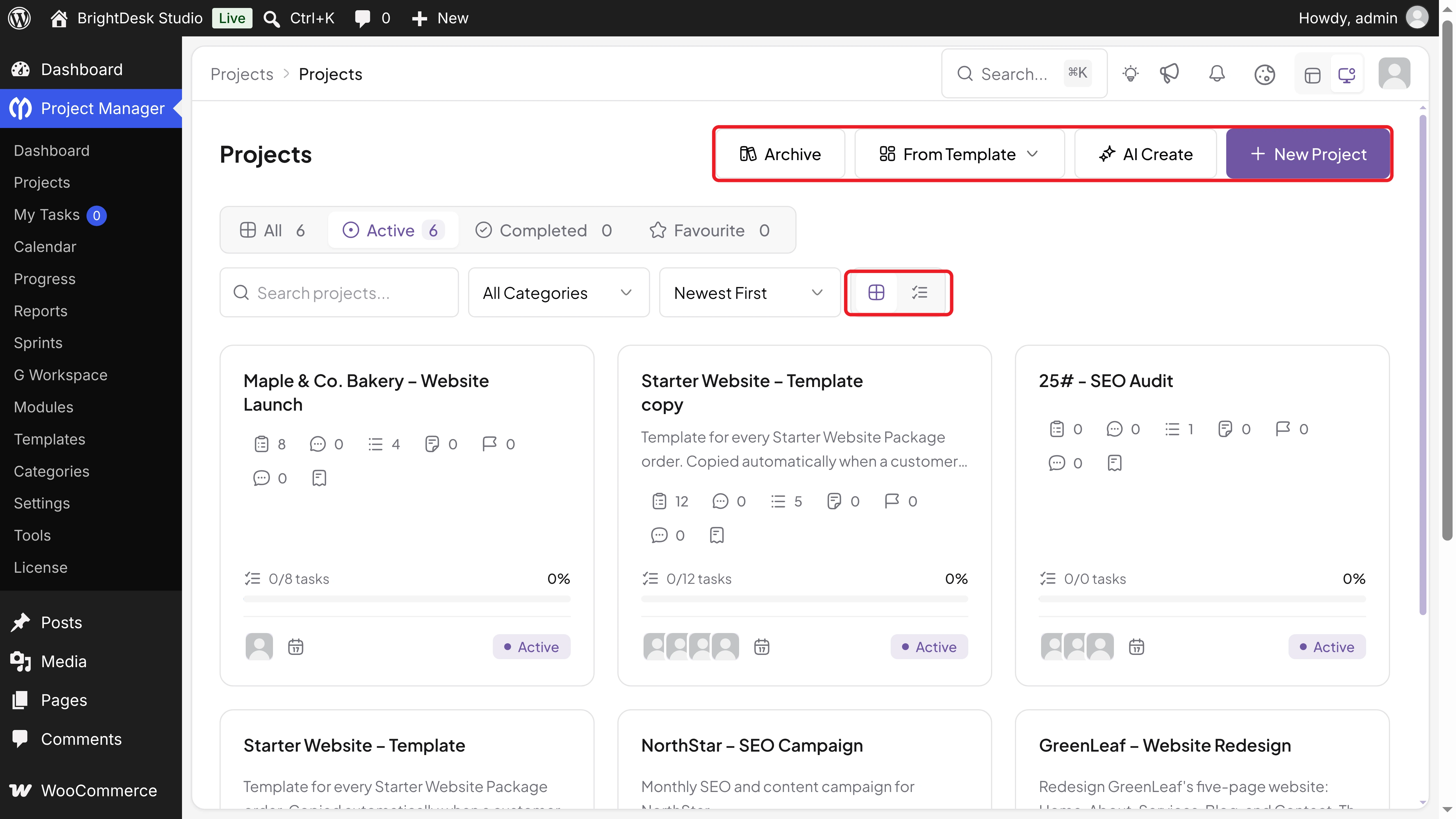
Every screen has been redesigned. The plugin now has a clean sidebar menu, a breadcrumb bar, a global search (⌘K or Ctrl+K), and a light or dark mode switch.
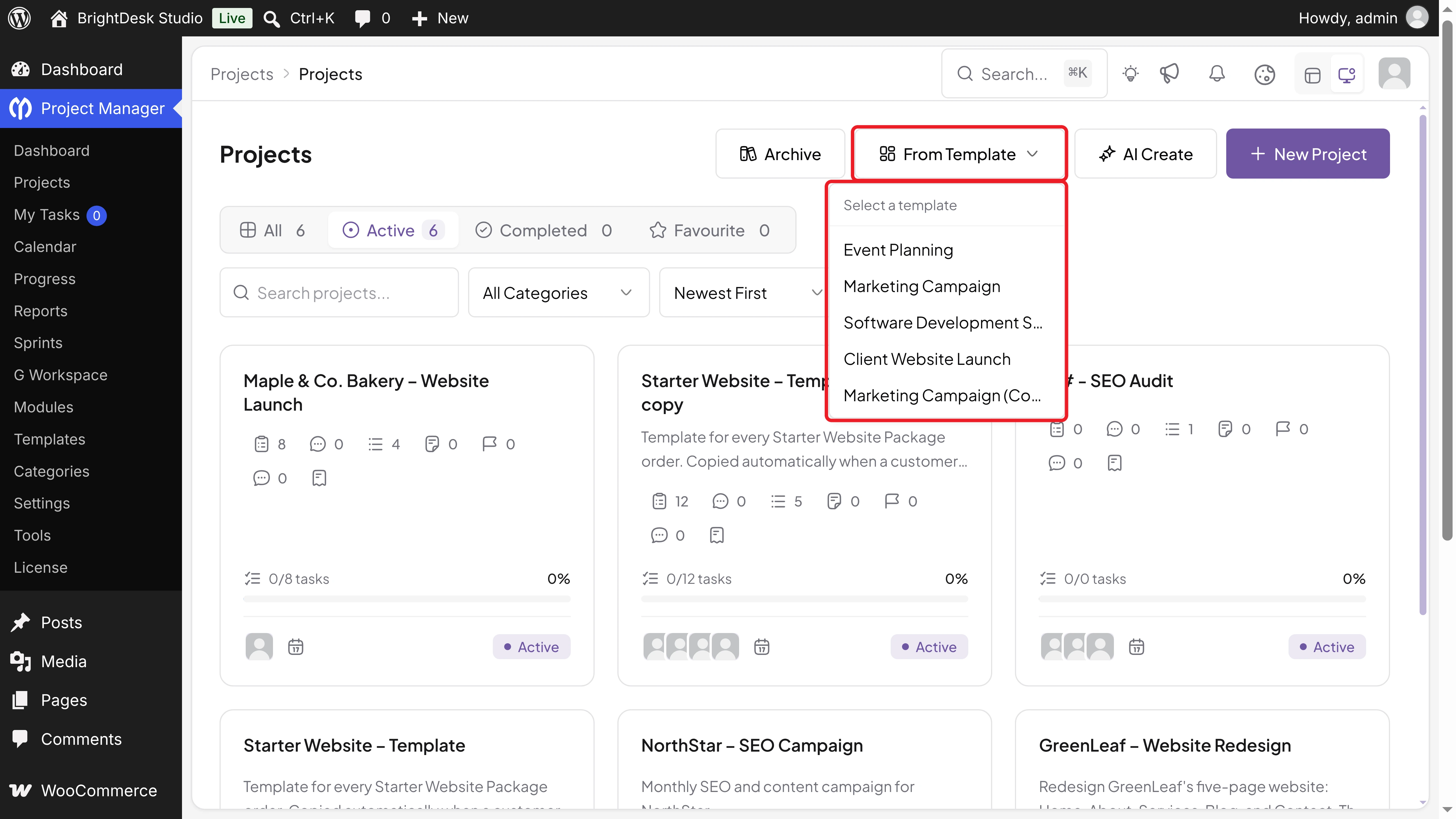
The Projects page puts the main actions in one row: Archive, From Template, AI Create, and New Project. You can filter projects by All, Active, Completed, and Favourite, and switch between grid and list views.
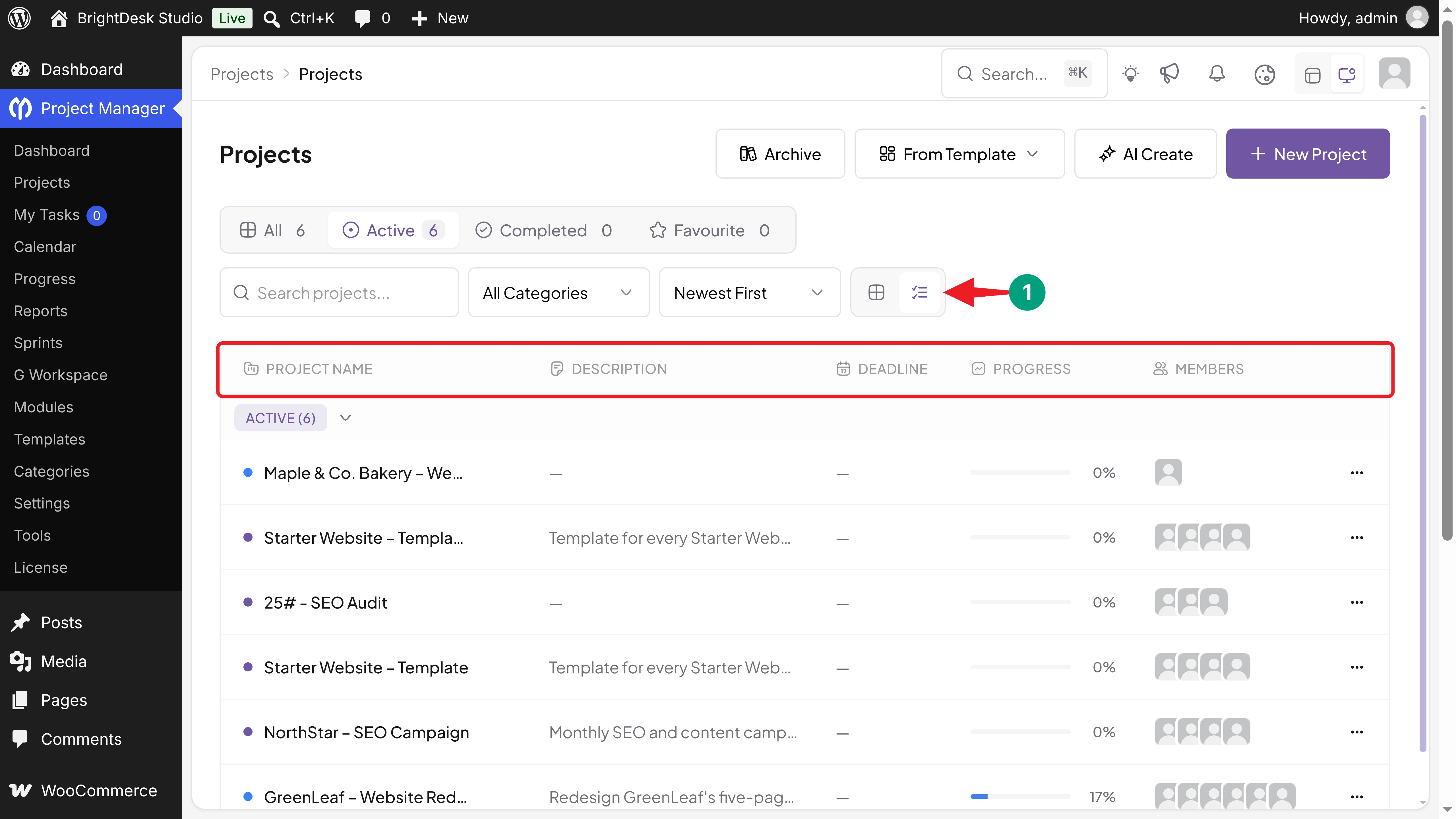
The list view shows each project's description, deadline, progress, and members in one table.
2. A Dashboard That Fits Your Role
The new dashboard greets each user and shows what matters to them. Admins and managers see completed, open, and overdue tasks, total tasks, time tracked today, and invoices. You can switch the period between 7d, 30d, and 90d.
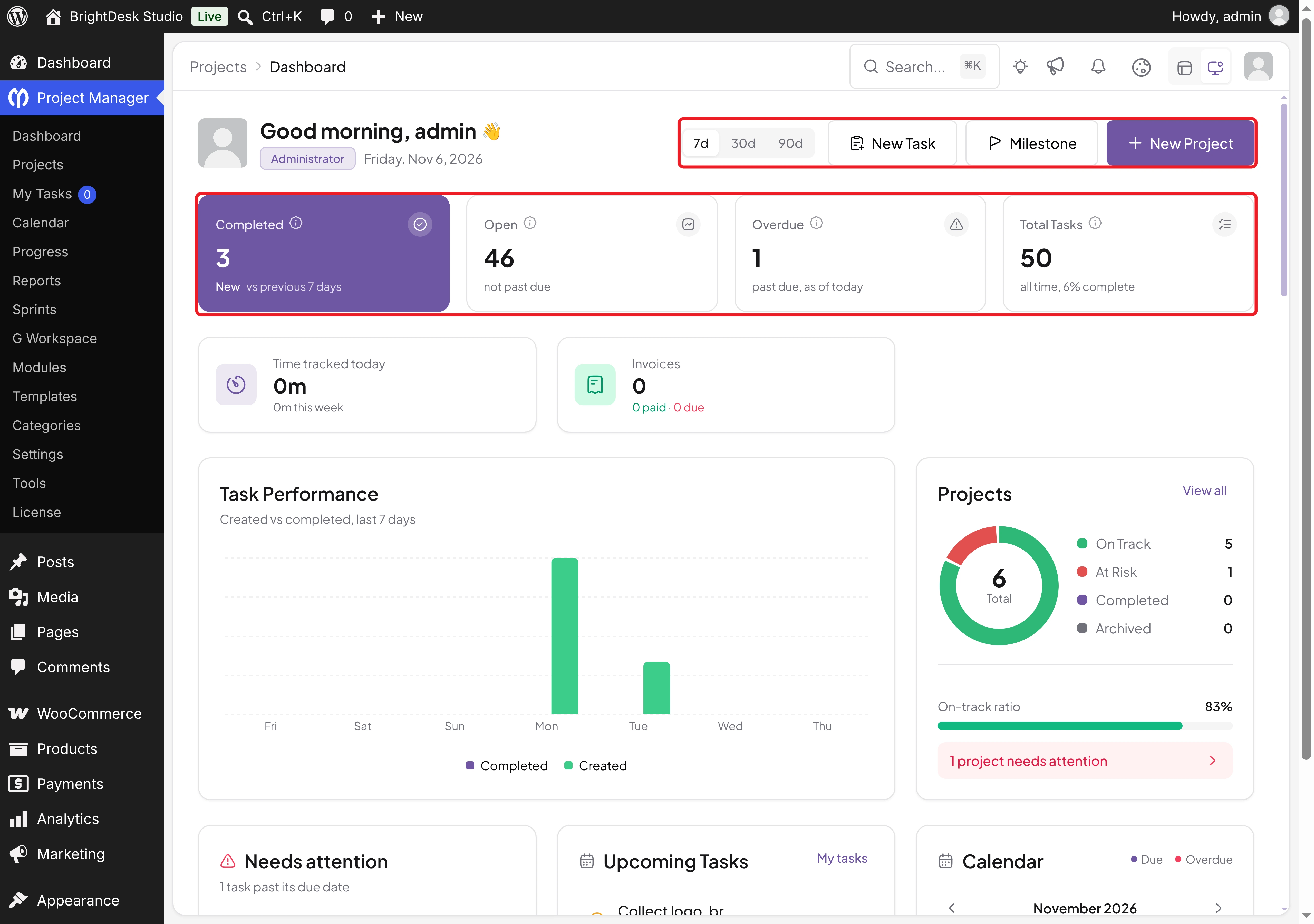
Below the numbers, you'll find Task Performance, a project health chart, Needs attention, Upcoming Tasks, and a mini calendar. Quick buttons let you add a New Task, Milestone, or New Project without leaving the page.
3. AI Project Creation
Starting a project from an empty page takes time. Click AI Create, describe what you're building, and the AI Project Generator drafts the task lists and tasks for you. You can edit everything before you create the project.
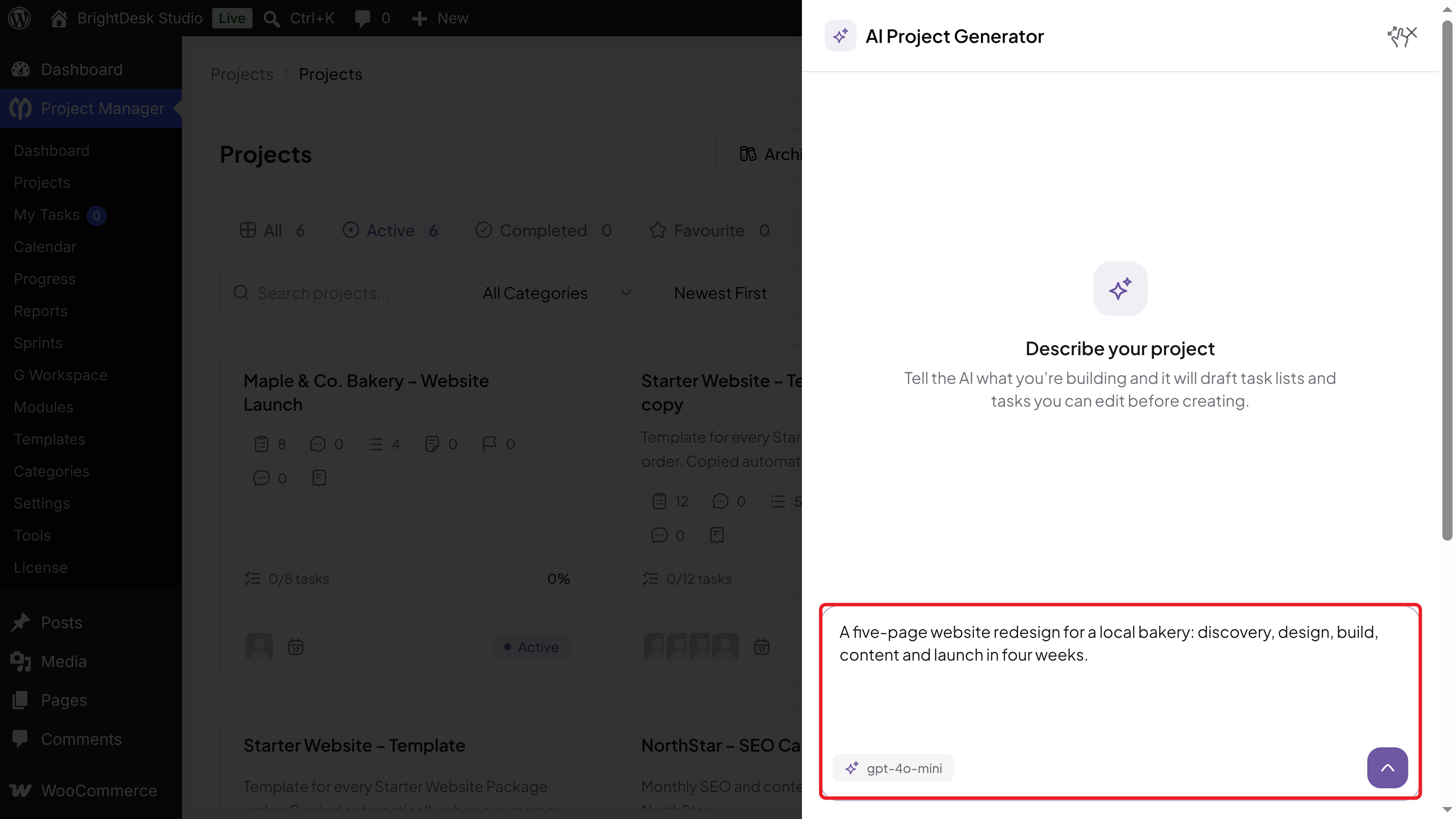
Note: Add your AI provider's API key under Project Manager > Settings > AI Settings first.
4. Project Templates (Pro)
If your team runs the same type of project again and again, save it as a template. A template holds task lists, tasks, and a Day value for each task, so due dates are set for you.
Start a new project with From Template on the Projects page, or pick a template in the New Project panel. Pro includes three ready-made templates: Event Planning, Marketing Campaign, and Software Development Sprint.
Learn more in our guide on how to create reusable project templates in WP Project Manager.
5. A Project Overview at a Glance
Each project now opens with an Overview tab. It shows the status, members, overall progress, counts for task lists, tasks, subtasks, discussions, milestones, and files, a progress chart, and recent documents.
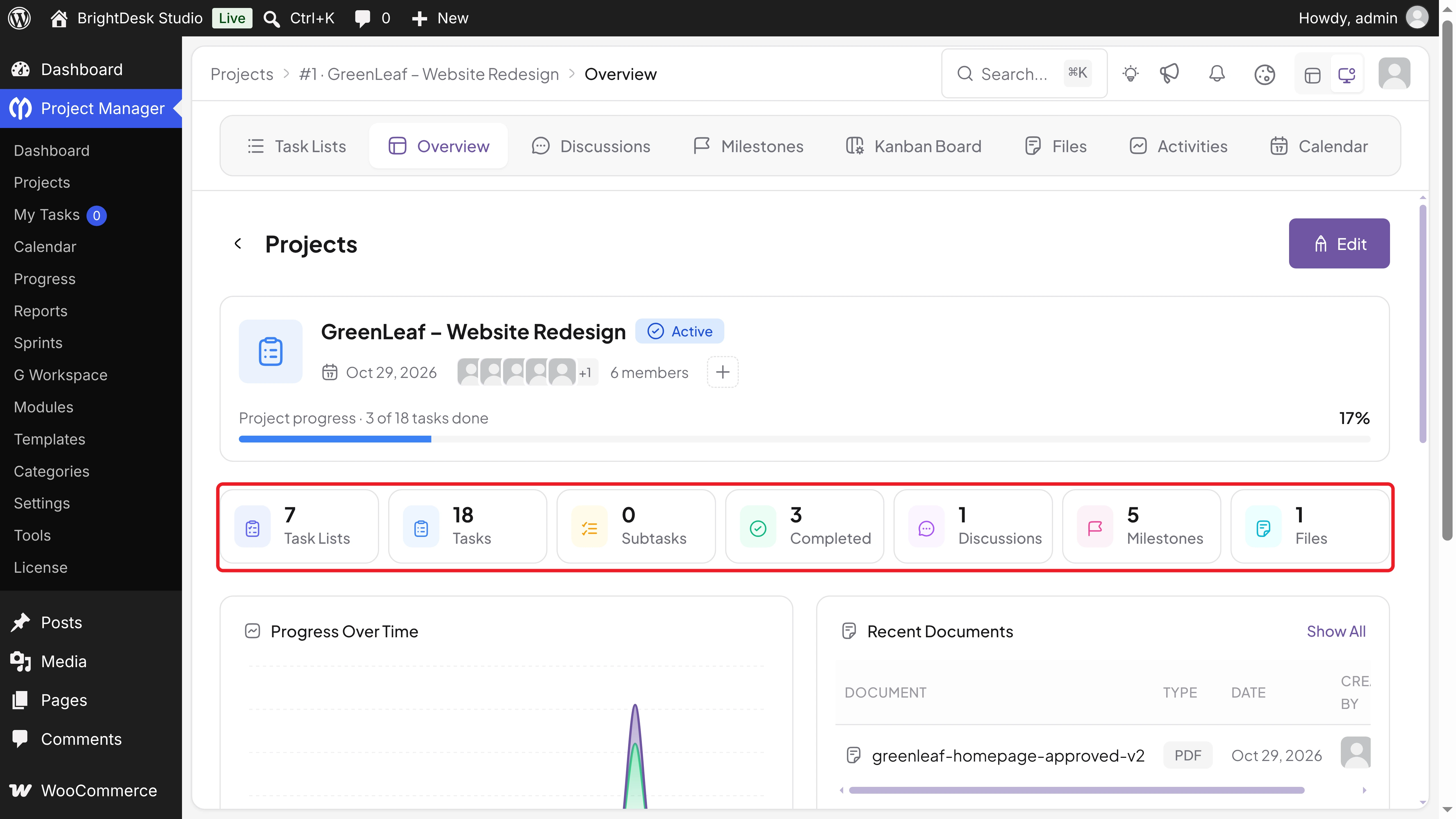
All project tools sit in one tab bar: Task Lists, Overview, Discussions, Milestones, Kanban Board, Files, Activities, and Calendar.
6. A Task Panel with Everything in One Place
Click any task and it opens in a large panel. On the left, you'll find all its attributes: status, dates, assignees, estimate, type, priority, milestone, privacy, labels, recurrence, and sprint. On the right, you'll see the description and the Subtasks, Comments, and Activities tabs.
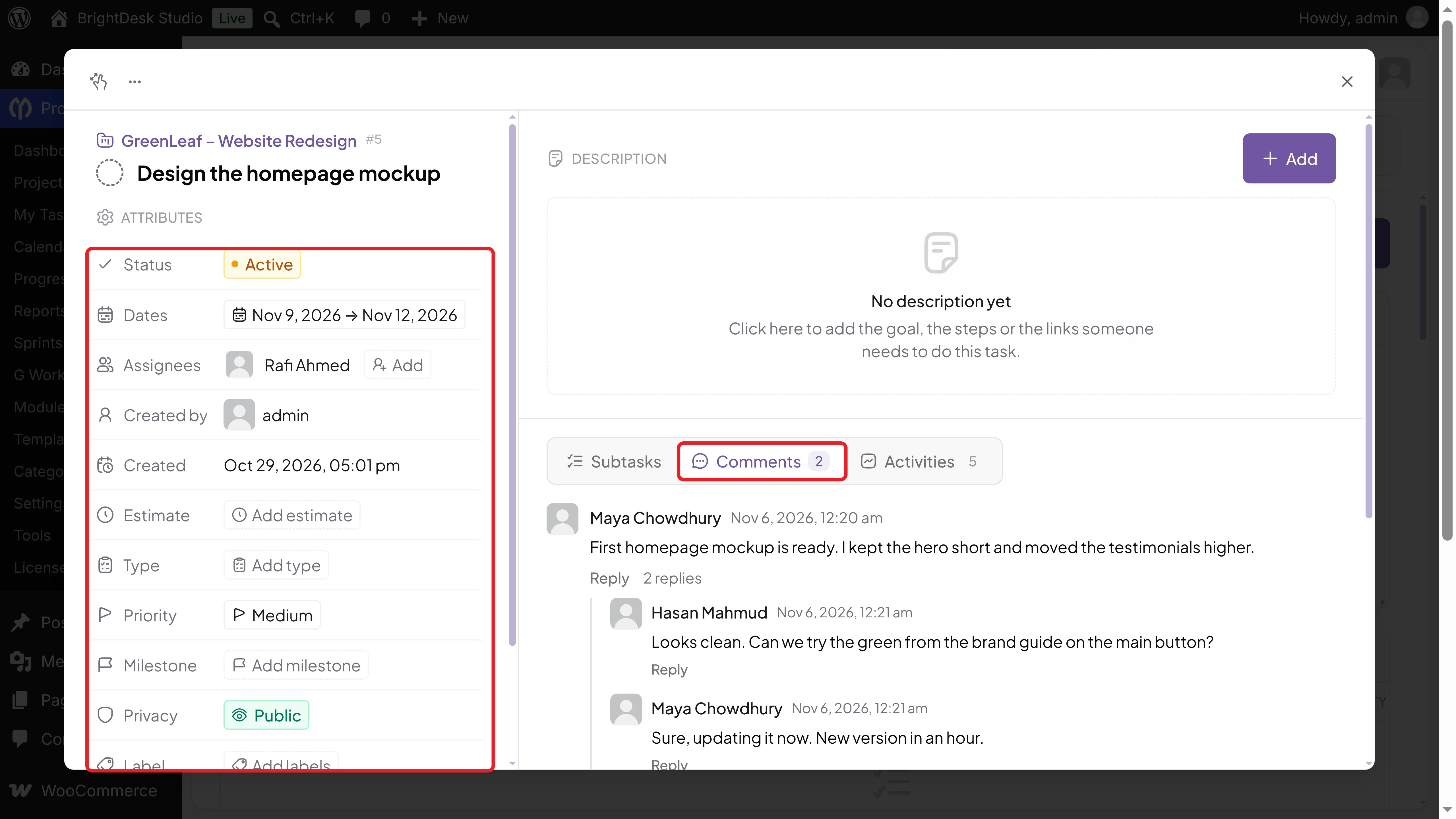
The editor is richer too. You can format text, add tables and images, and paste Markdown, and it keeps the formatting.
7. Threaded Comment Replies
Long comment threads used to get messy. Since version 4.1.1, you can reply to a specific comment, and replies are grouped under it. Click Reply to answer, or 2 replies to show or hide a thread.
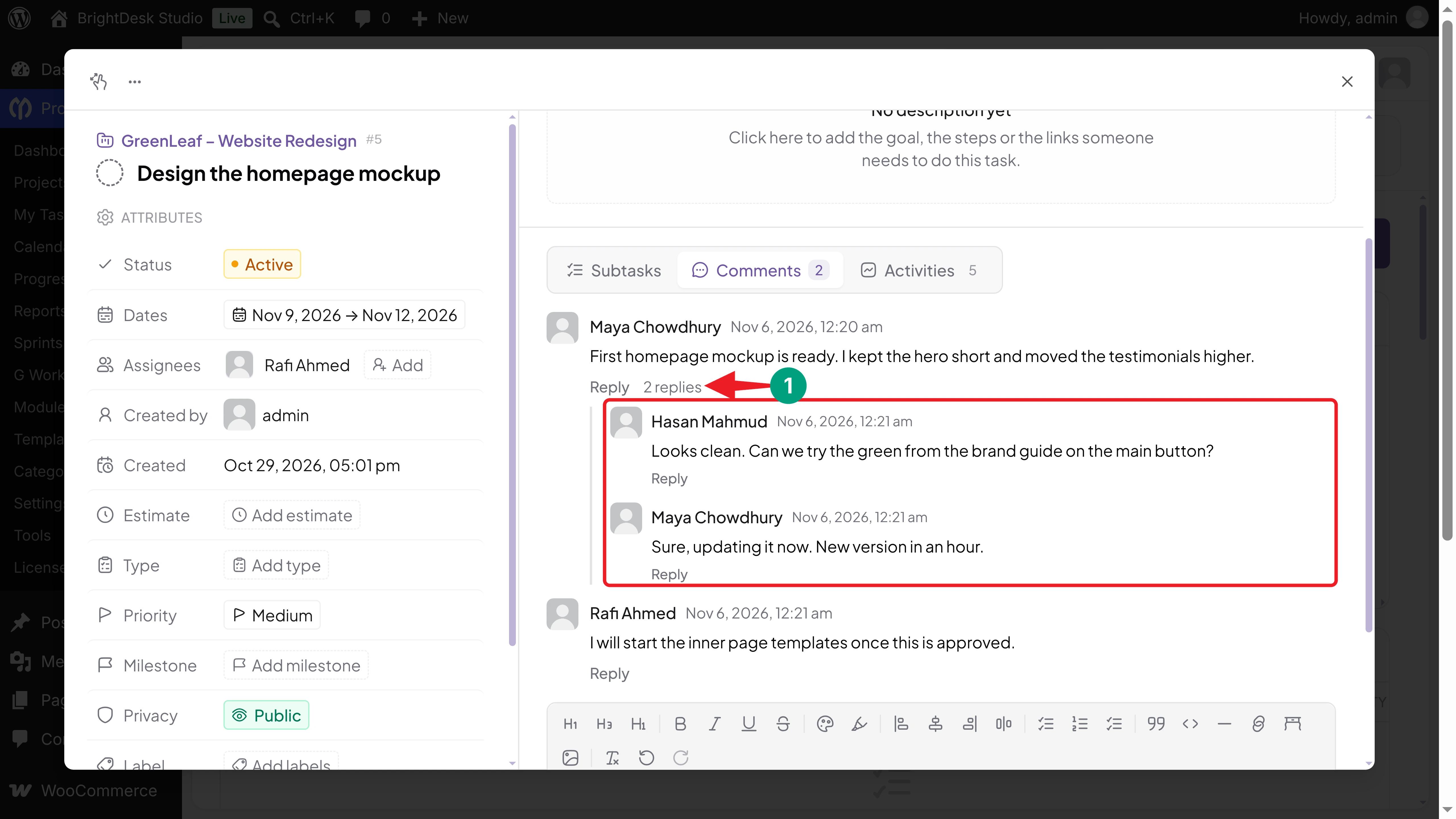
Replies work in task comments and discussions. Before deleting a comment that has replies, the plugin now asks you to confirm.
8. Better Task Filters
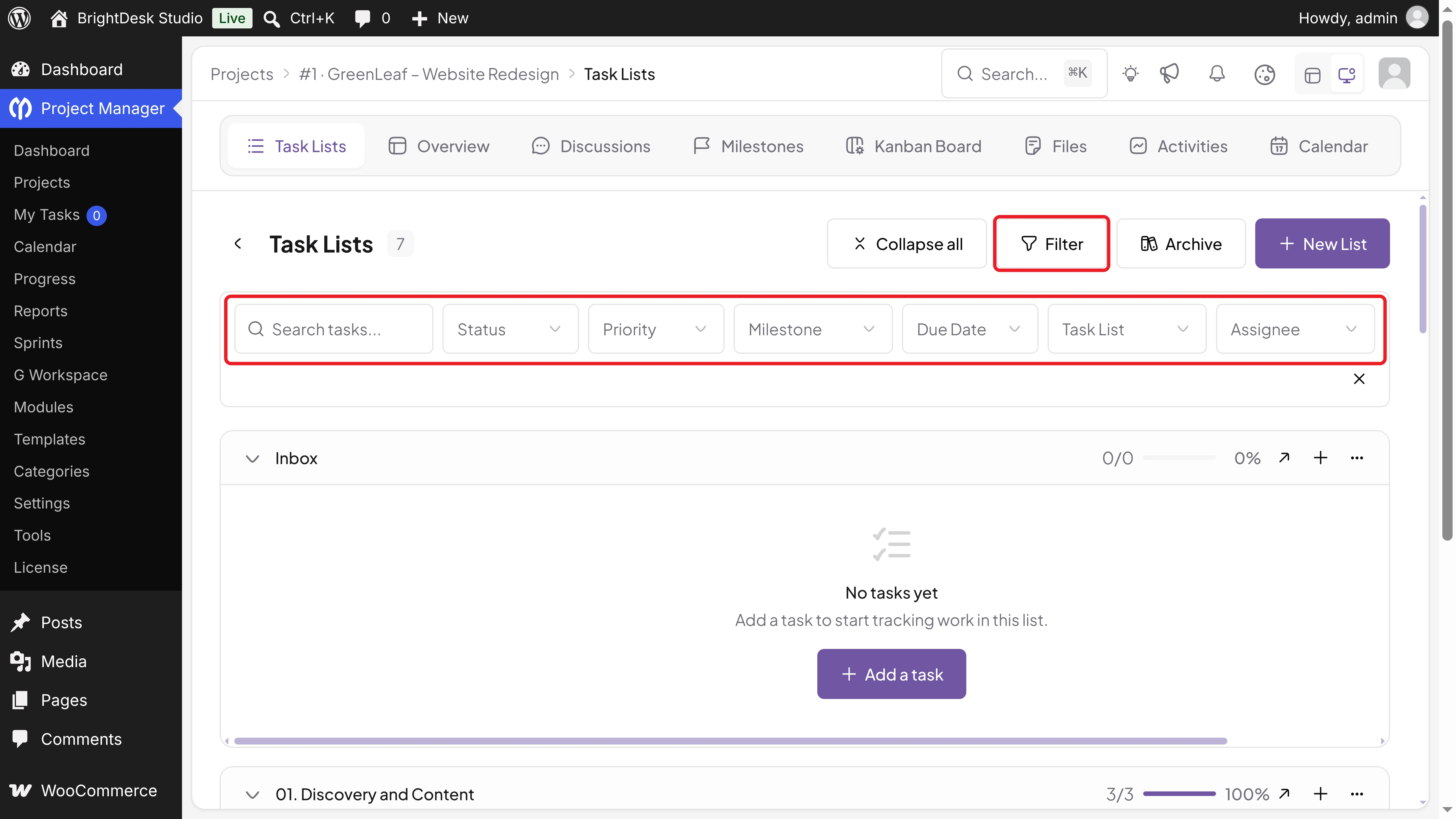
In a busy project, you need to find tasks fast. Click Filter on the Task Lists tab to search tasks and filter them by Status, Priority, Milestone, Due Date, Task List, and Assignee.
9. A Free Kanban Board with Custom Backgrounds
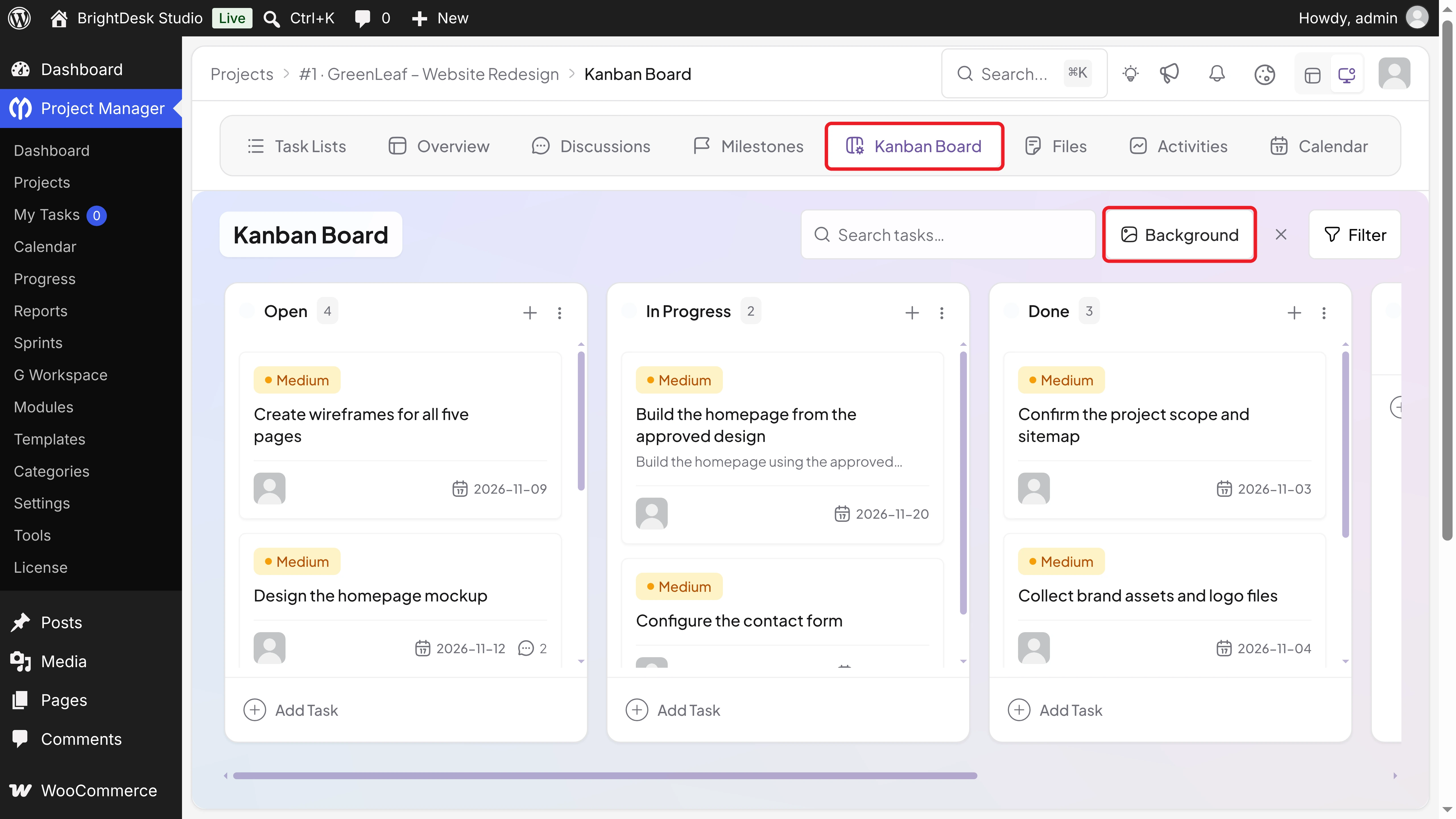
The Kanban board used to be a Pro feature. Since version 4.0.6, it's free. Open the Kanban Board tab to move tasks between Open, In Progress, Done, and Overdue, add your own columns, and search or filter cards.
You can also give each project's board its own look. Click Background and upload an image.
10. A Calendar Tab in Every Project
Each project now has its own Calendar tab. It shows tasks and milestones by Month, Week, or Day, with colors for incomplete, complete, and overdue tasks. Use All Users to see one person's work.
11. Google Workspace Integration
Your files probably live in Google Drive. With the new Google Workspace integration, your team can attach Drive files to tasks, comments, and discussions. Google Drive is free. Google Calendar sync and Google Meet come with Pro.
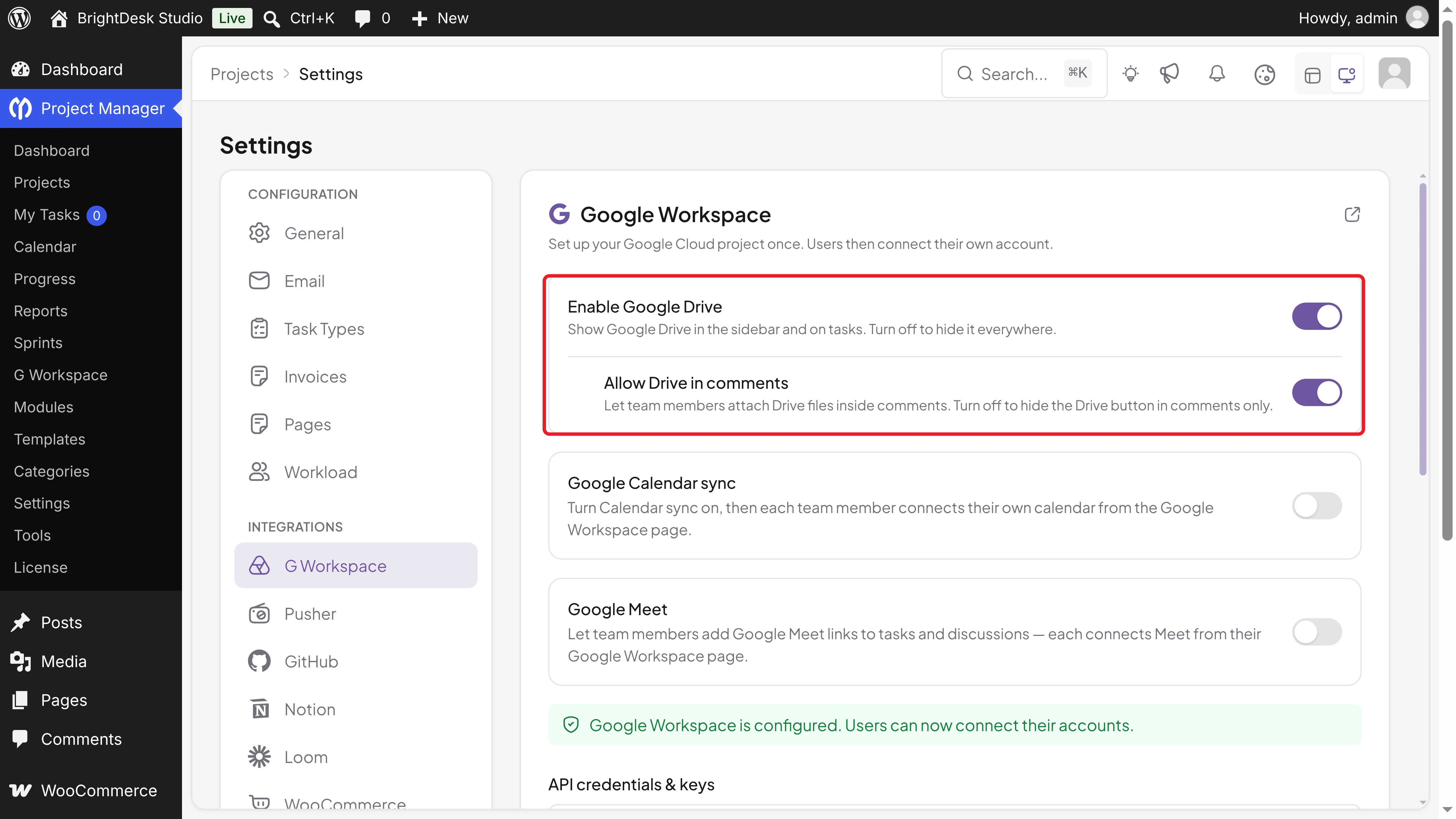
Read our step-by-step guide on how to attach Google Drive files to WP Project Manager tasks.
12. More Power with Pro Modules
WP Project Manager Pro adds modules you can turn on as you need them under Project Manager > Modules: Sub Task, Time Tracker, Gantt Chart, Project Invoice, Recurring Task, Custom Fields, Sprint, WooCommerce Order, BuddyPress Integration, and the Invoice Stripe Payment Gateway.
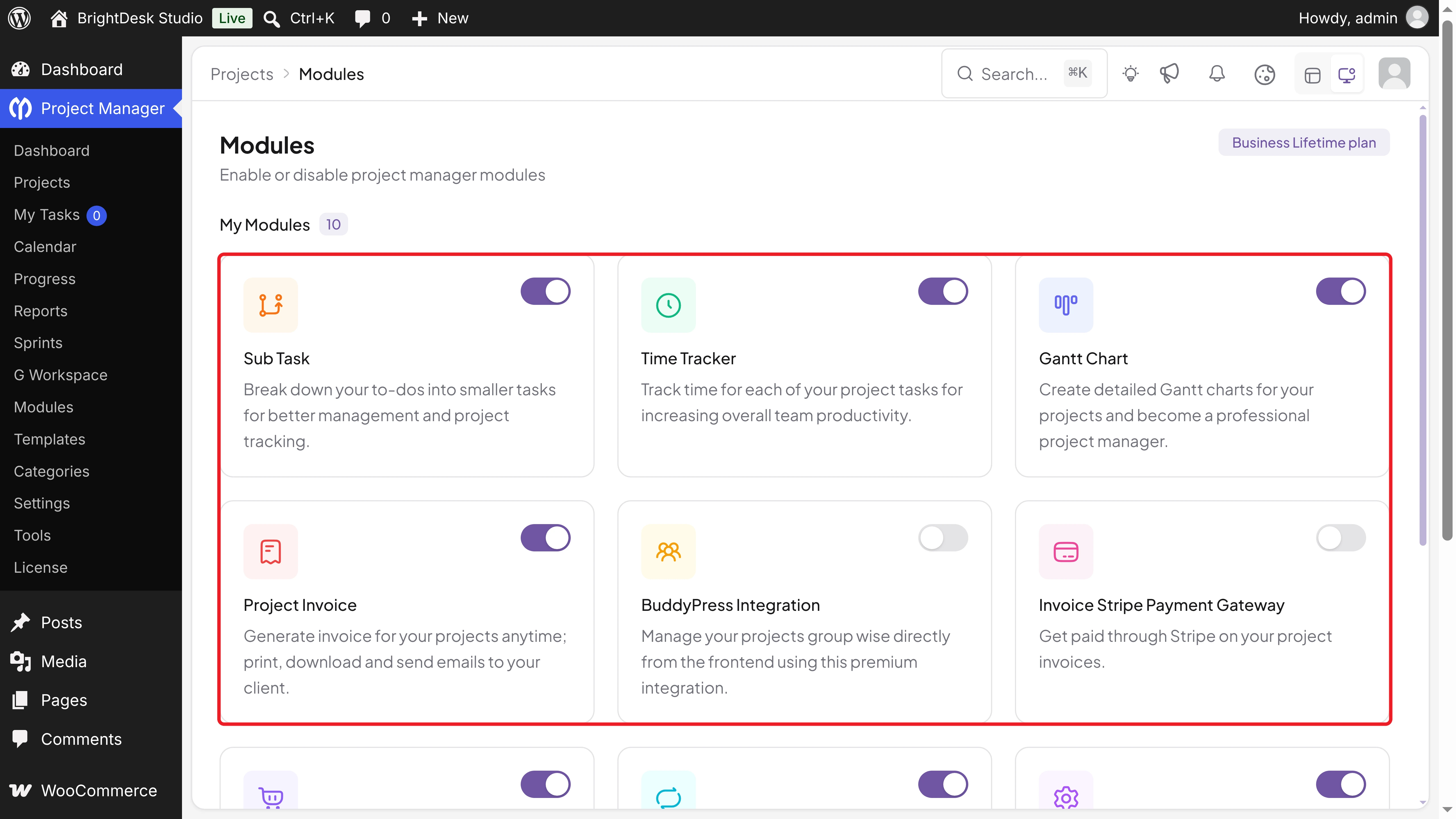
Note: The modules you see depend on your Pro plan.
13. Stronger Security and Stability
A modern look means little if the plugin isn't safe. Since the revamp, we've fixed a long list of security issues, many reported by security researchers such as Wordfence. We also limited access to global settings and private items, and made action buttons hide when a user can't use them.
On the stability side, the plugin now supports WordPress 7.1, PHP 8.4, and SQLite sites such as WordPress Playground.
14. Ready for More Languages and Screens
WP Project Manager now supports right-to-left (RTL) languages, starting with Arabic. Its settings, projects, and tasks screens also work better on phones and small screens.
Free vs Pro: What You Get in v4.1.2
Many features that teams use every day are free. Here's how the two versions compare:
| Feature | Free | Pro |
|---|---|---|
| New interface, dashboard, and global search | Yes | Yes |
| Projects, task lists, tasks, milestones, and discussions | Yes | Yes |
| AI project creation | Yes | Yes |
| Kanban board with backgrounds | Yes | Yes |
| Project and global calendars | Yes | Yes |
| Threaded comments and file sharing | Yes | Yes |
| Google Drive integration | Yes | Yes |
| Project templates | No | Yes |
| Google Calendar sync and Google Meet | No | Yes |
| Subtasks, time tracking, Gantt chart, sprints, and recurring tasks | No | Yes |
| Invoices, custom fields, and WooCommerce orders | No | Yes (by plan) |
Why This Matters for Users
The revamp isn't only about looks. It changes how your team works every day:
- One place for your work: Tasks, files, discussions, and calendars stay in your WordPress dashboard, without another subscription.
- Faster setup: AI creation and templates turn a blank project into a full plan in minutes.
- Clearer status: The dashboard, Overview tab, and Kanban board show what's done, what's late, and what's next.
- Better conversations: Threaded replies and Drive files keep feedback organized.
- Your data stays yours: Everything is stored in your own WordPress database, on your own server.
Our Commitment: The Next Chapter
Eleven releases in six months show where we're headed. We'll keep shipping regular updates, fixing bugs fast, and adding features our users ask for. Since the revamp, our WordPress.org rating has started to climb again, and we want to keep earning it.
Your feedback shapes every release. Share a review on WordPress.org, report an issue on GitHub, or contact our support team.
Try the Latest Version of WP Project Manager
If you haven't updated yet, now is the time. Update WP Project Manager to 4.1.2 (and Pro to 4.1.2), then try these first:
- Create a project with AI Create or From Template.
- Move a few tasks on the Kanban Board and give it a background.
- Reply to a comment and see the new threads.
- Open the dashboard and switch between 7d, 30d, and 90d.
FAQ on the WP Project Manager Revamp
Will updating to version 4.1.2 delete my projects?
No. The revamp kept the same plugin and database, so your projects, tasks, and files stay in place. As always, take a backup before you update.
Do I need to update WP Project Manager Pro too?
Yes. Version 4.1.0 and newer need WP Project Manager Pro 4.1.0 or newer. Update both plugins together.
Is the Kanban board free now?
Yes. Since version 4.0.6, the Kanban board is part of the free plugin.
Which features still need Pro?
Project templates, Google Calendar and Meet, subtasks, time tracking, Gantt charts, sprints, recurring tasks, invoices, custom fields, and the WooCommerce integration.
Does WP Project Manager work in right-to-left languages?
Yes. Version 4.0.2 added RTL support, starting with Arabic.
Conclusion
Fourteen years in, WP Project Manager is still here, and it's better than ever. The 4.0 revamp gave it a new face. The releases since then, up to 4.1.2, added the features, security, and polish that teams expect from a modern project management tool.
This is still the same plugin you know, only faster, safer, and easier to use. Update today, and tell us what you'd like to see next.