

How to Integrate GitHub and Bitbucket with WP Project Manager
Managing a WordPress project means handling both code and tasks. Developers write code on GitHub or Bitbucket, and project managers track tasks with tools like WP Project Manager. But repetitive switching between tools wastes time.
Imagine if your code commits appeared directly within your project tasks, or if every pull request was linked to a real task card. Don't you think this can save you a lot of valuable time? That's what GitHub & Bitbucket integrations with WP Project Manager do.
WP Project Manager is a prominent project and task management tool for WordPress. Thousands of people have already used it and are using it to handle various types of projects. Some might look for ways to integrate GitHub and Bitbucket with this tool.
This guide will show you the process with a detailed guide. You do not need to be a technical expert to follow along. We have written every step in simple, plain English. So, let's explore how to integrate GitHub and Bitbucket with WP Project Manager.
What Is WP Project Manager and Why Developers Use It
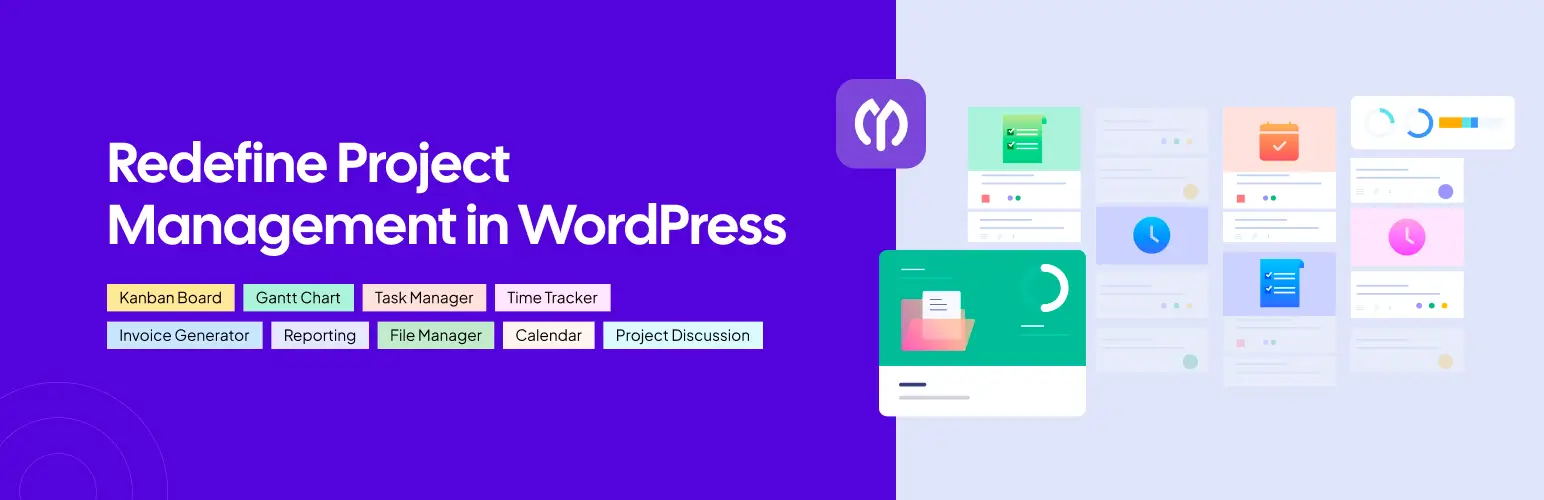
WP Project Manager is a powerful WordPress plugin built by weDevs. It lets teams manage projects, create tasks, assign team members, track milestones, check progress report realtime, and collaborate directly within the WordPress dashboard.
Developers love it because it fits right inside WordPress without needing a separate subscription tool. It supports task lists, time logs, kanban boards, Gantt charts, and file sharing. It also connects with popular tools like Slack, Google Drive, and more.
You can manage client projects, internal development work, freelance tasks, and agency workflows all in one single place.
What Does GitHub and Bitbucket Integration Mean
Integration means connecting two tools so they can share information automatically. When you integrate GitHub or Bitbucket with WP Project Manager, the two systems begin talking to each other in real time every day without any disruption.
For example, when a developer makes a commit on GitHub with a task ID in the message, that commit appears inside the matching task in WP Project Manager. No copy-pasting. No manual updates. It all happens automatically.
The same works for Bitbucket. Commits, pull requests, and branch changes in your Bitbucket repository can be tracked right inside your WP Project Manager tasks. Your whole team always knows what is happening with the code.
Key Benefits of Integrating GitHub and Bitbucket with WP Project Manager
Why should you integrate GitHub and Bitbucket with WP Project Manager? Of course, there are many distinguishable benefits. We have discussed many prominent ones below.
a. Centralized Workflow for Code and Tasks
Without integration, your code lives in GitHub or Bitbucket, and your tasks live in WP Project Manager. Your team always has to switch between tools to understand what is happening with a project at any given moment.
With integration, commits, pull requests, and code changes appear directly inside the right task. Your project becomes one unified space where code and task management exist side by side without any confusion or gaps.
b. Better Team Collaboration
When developers link commits to tasks, non-technical team members can also follow what is happening. Team members can leave comments on tasks. This creates one conversation thread that combines project talk and development updates.
Learn how to improve team collaboration for better productivity.
c. Faster Issue Tracking
When a bug is found and a task is created, a developer can commit a fix directly linked to that task. The fix is automatically visible inside the task, so your team knows the issue is being worked on. It removes the need for long status update meetings.
d. Real-Time Updates from Repositories
A webhook is just an automatic signal sent from GitHub or Bitbucket to WP Project Manager whenever something changes. Every time code is pushed to your repository, WP Project Manager gets updated via webhooks, giving you real-time updates.
e. Less Manual Work
Without integration, developers have to manually update task statuses after making commits. They have to tell the project manager what they pushed. Integration eliminates this manual work almost completely, saving you a lot of valuable time.
How to Integrate GitHub and Bitbucket with WP Project Manager
Before setting up the integration, you have to activate your account on GitHub and install the WP Project Manager plugin. We have included all those steps in this how-to section. Keep reading!
Step 01: Active Account on GitHub
You need an active account on GitHub. If you do not have one yet, sign up for free. Both platforms offer free accounts that work perfectly for integration with WP Project Manager.
Step 02: Install WP Project Manager
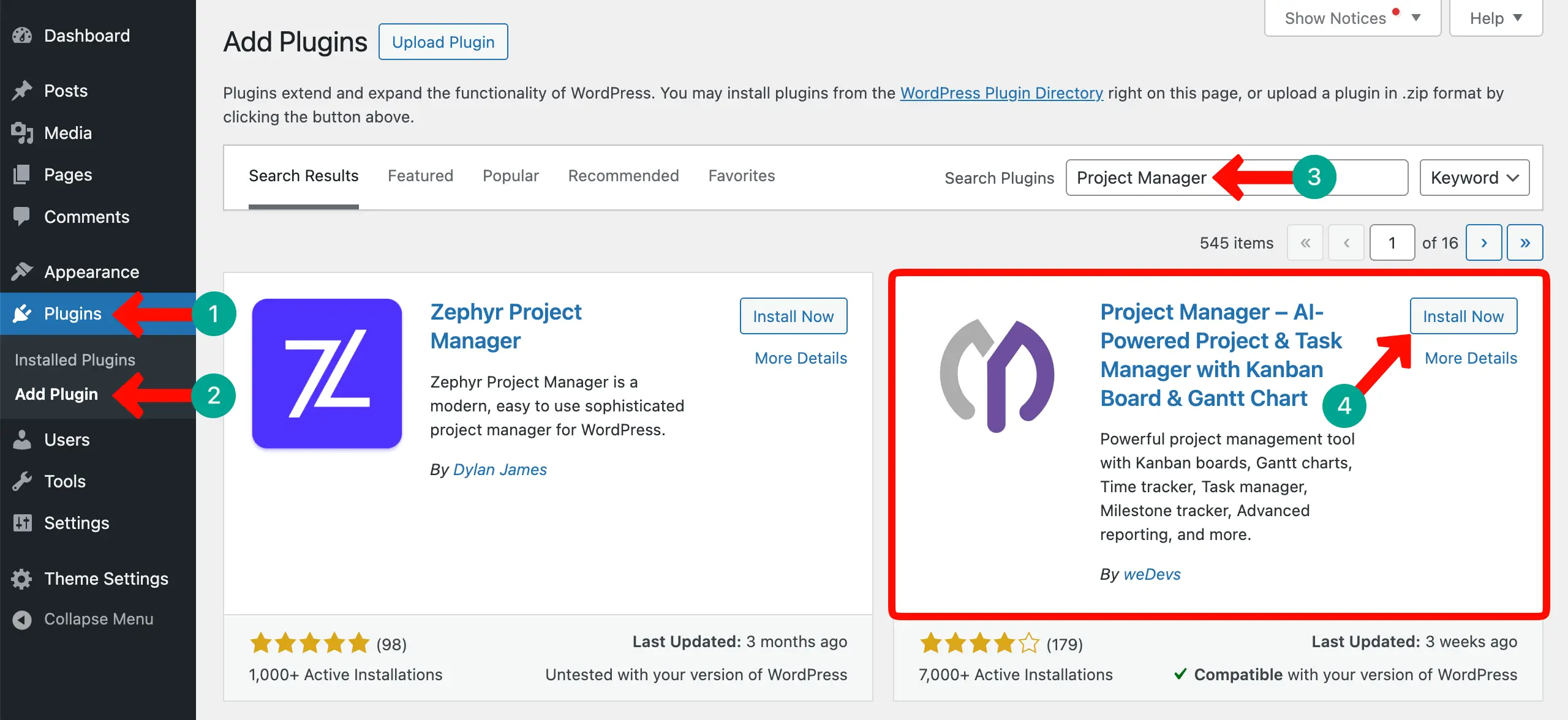
Log in to your WordPress dashboard. If you already have the WP Project Manager installed on your site, that's fine. Otherwise, install the WP Project Manager plugin and activate it.
Step 03: Create a Project
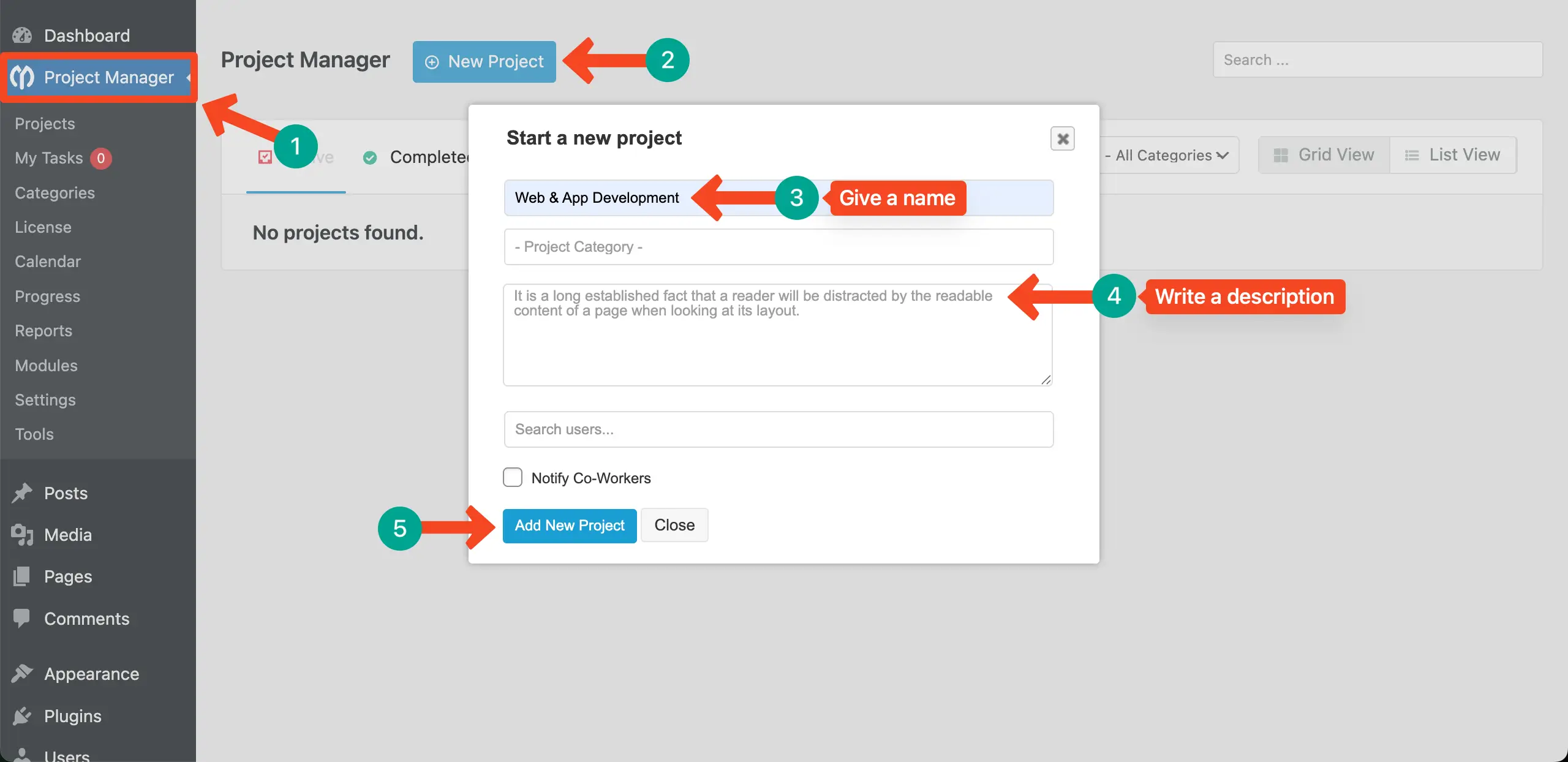
Come to the WP Project Manager dashboard. Create a new project on the dashboard by clicking the + New Project button. You can see the process in the screenshot attached below.
Step 04: Go to the Settings of the Project
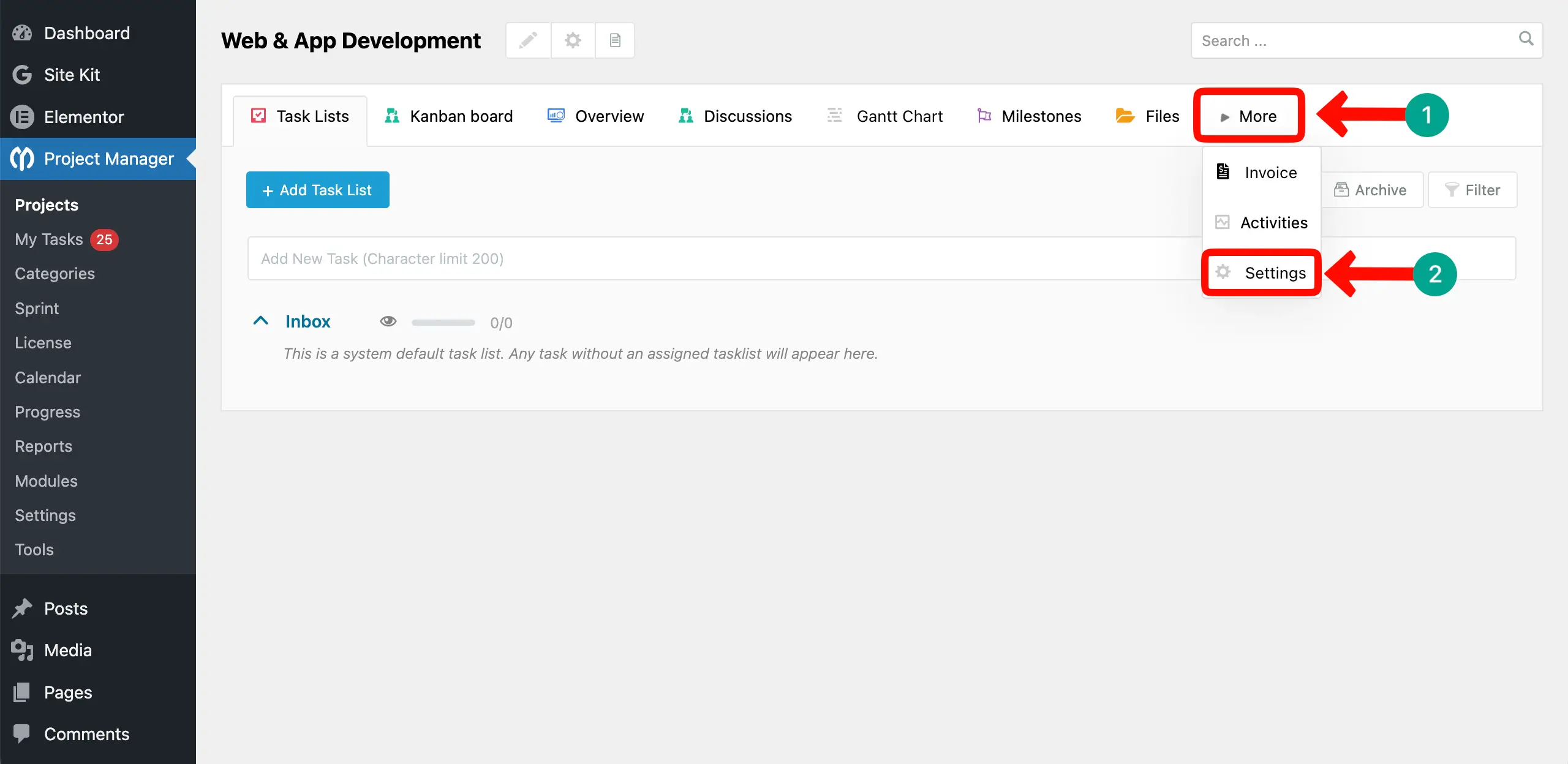
After the project is created, enter it. You can create tasks, task lists, and assign them to respective users as you usually do for any other project. You can do it later. But let's focus on the integration.
Hover the cursor on the More option on the tab bar. A list will open up where you will see the Settings option. Click on Settings.
📍Note: Integrating GitHub & Bitbucket with WP Project Manager is pro feature. So, you must have the premium version of the WP Project Manager plugin to do the following parts.
Step 04: Enable GitHub and Bitbucket
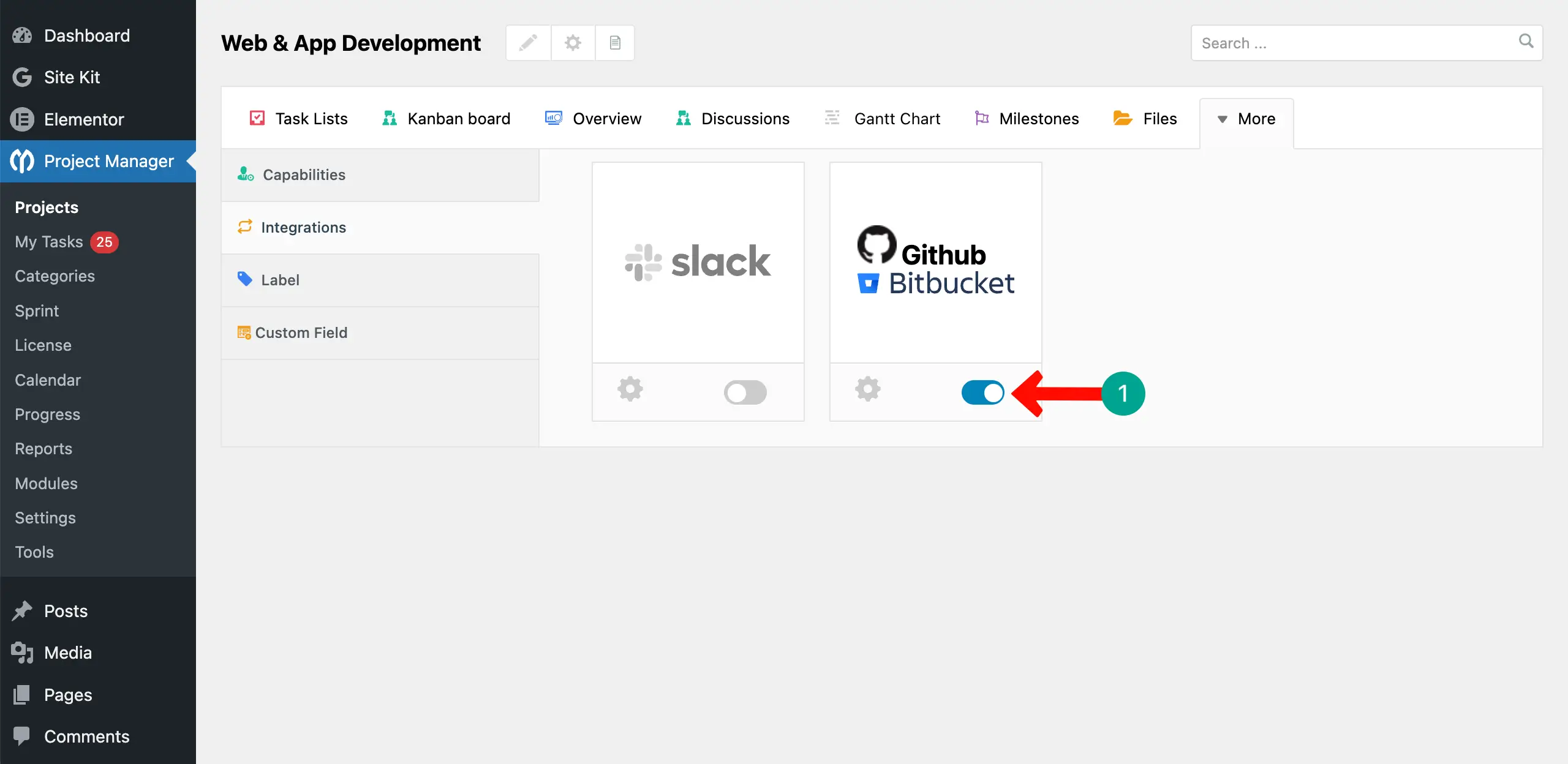
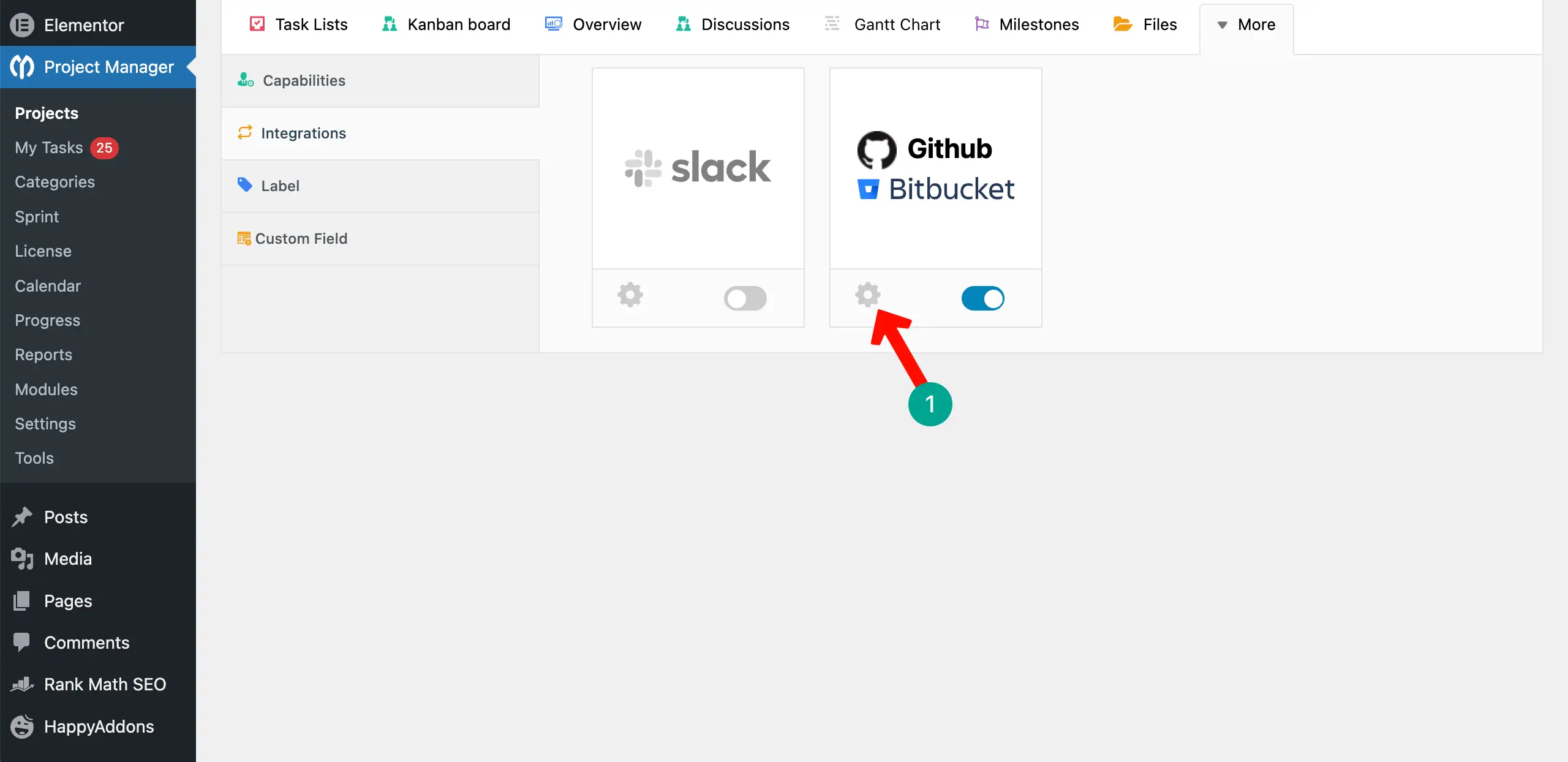
You'll find the GitHub & Bitbucket option on the page. Toggle on to enable this option.
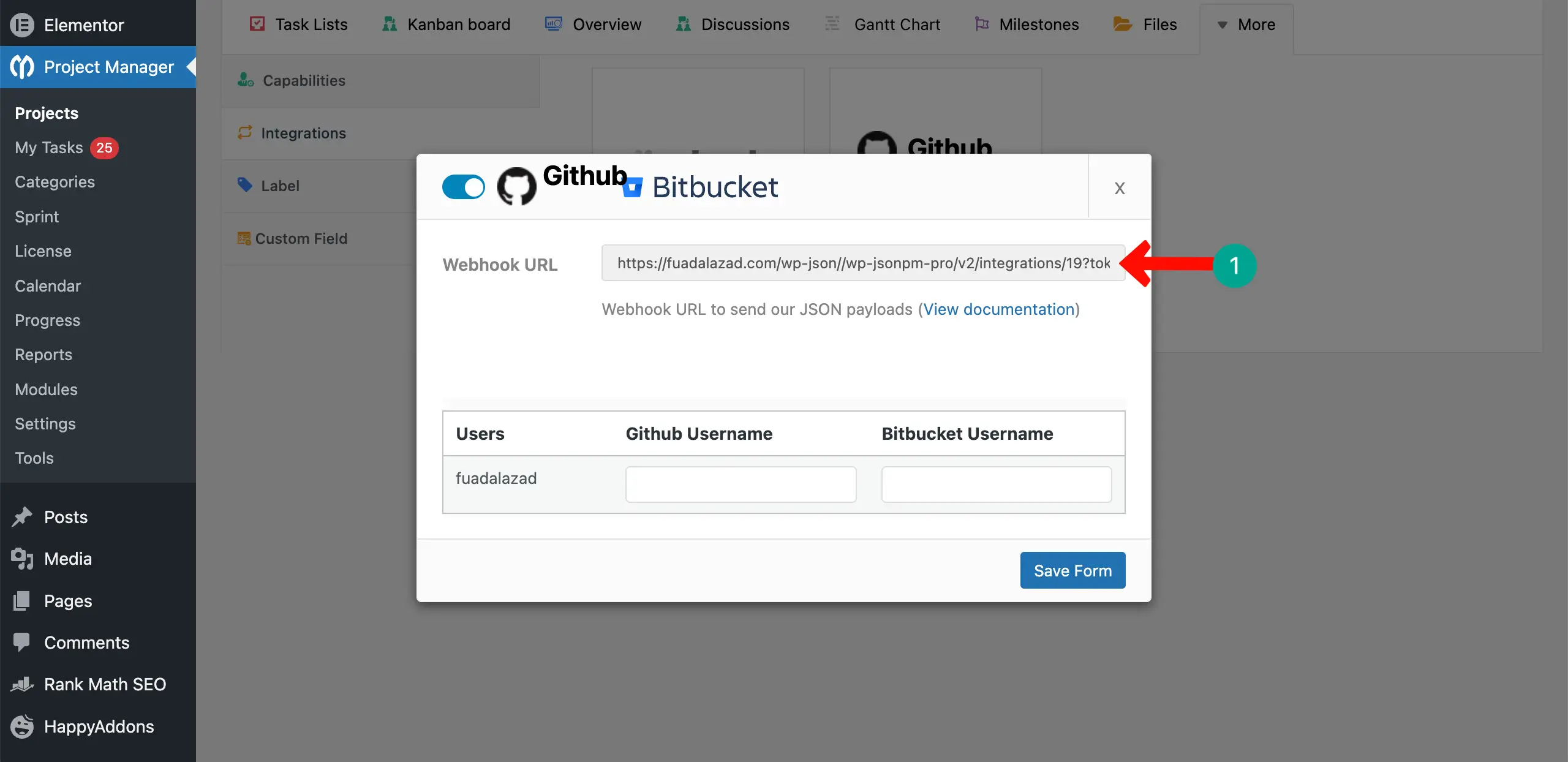
Step 05: Get the Webhook URL
Click the settings icon.
Copy the webhook URL.
Step 06: Place the Webhook on GitHub
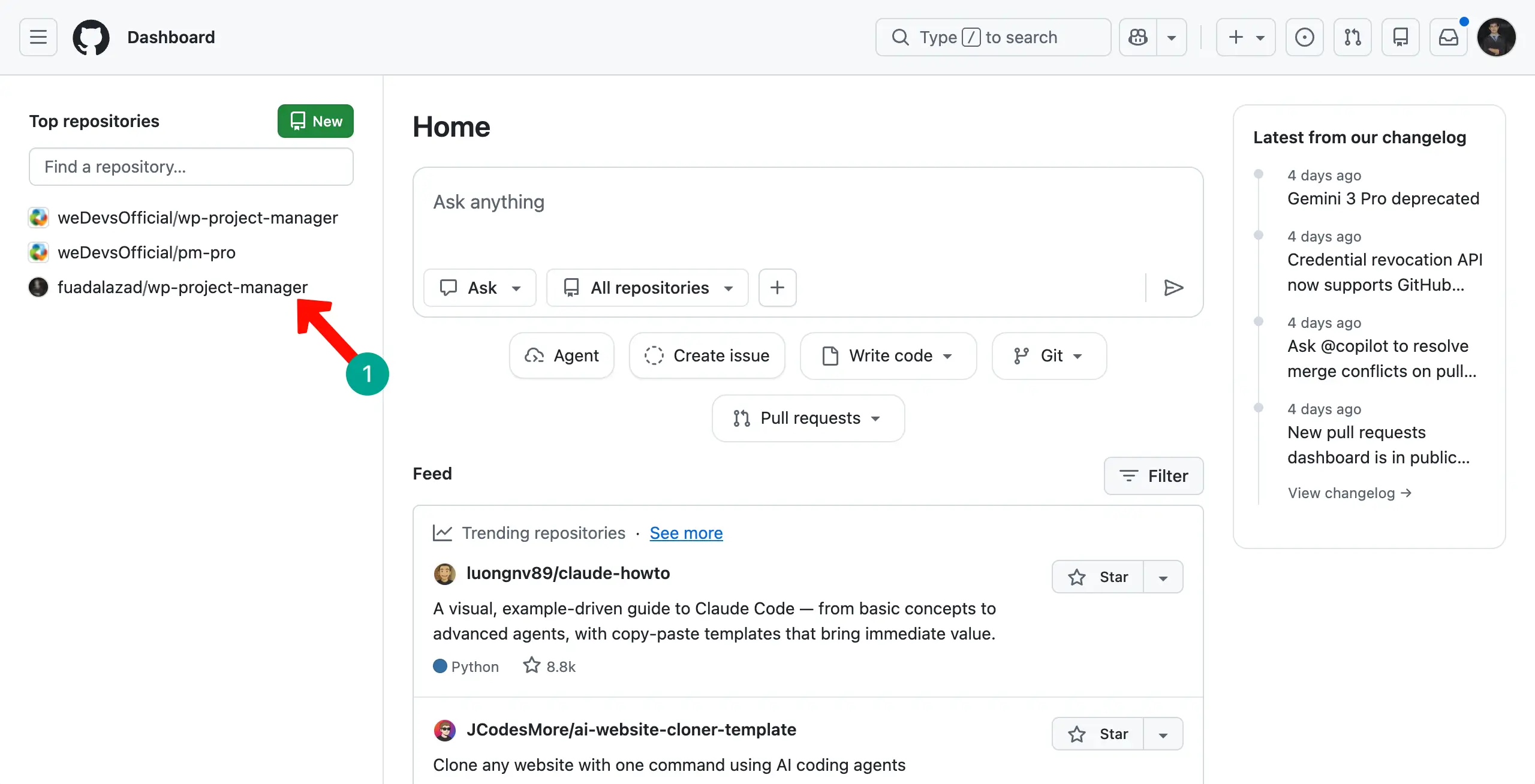
Come to your GitHub. Go to the repository you want. You can see in the screenshot attached below that we have selected a repository.
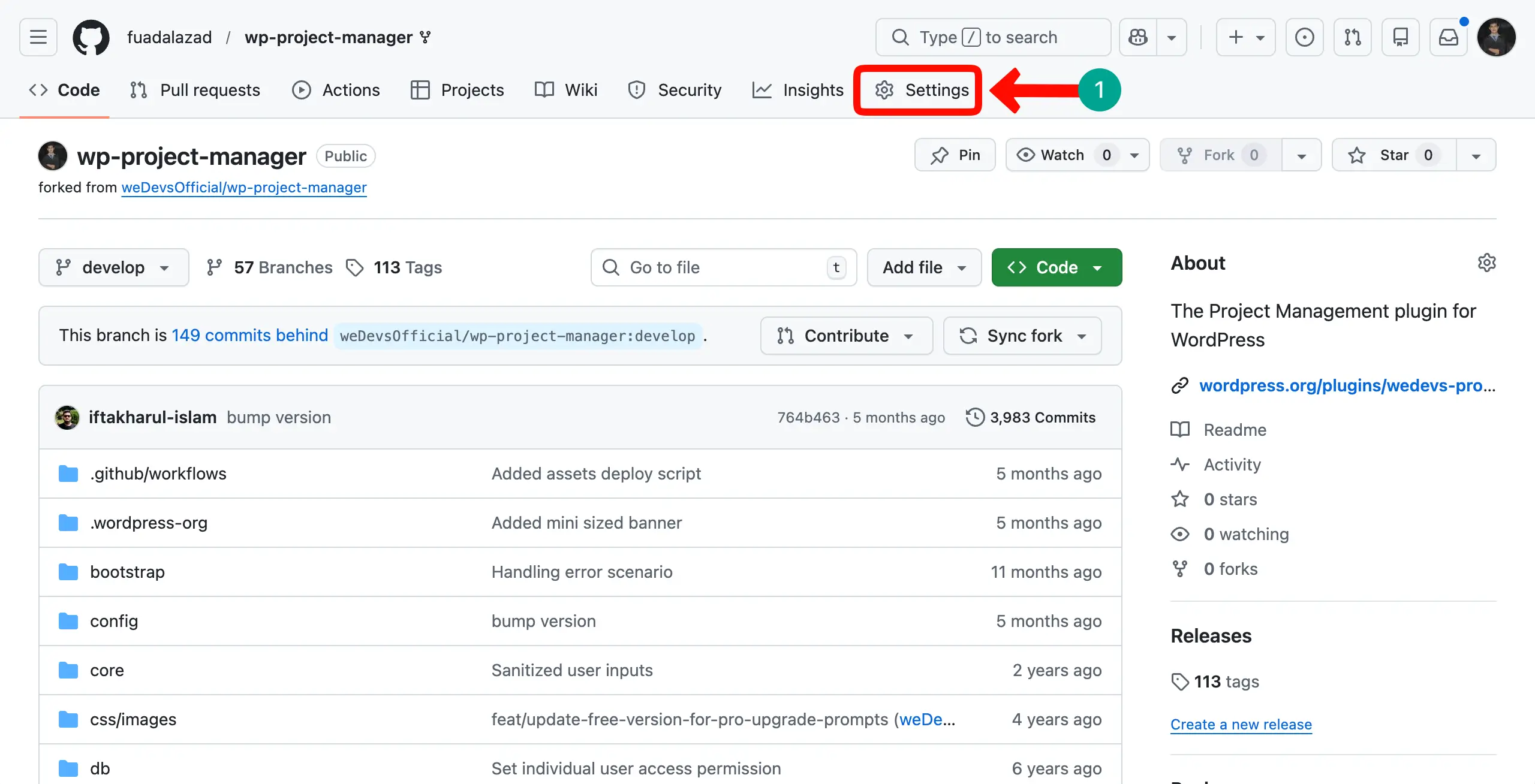
Click the Settings option on the repository.
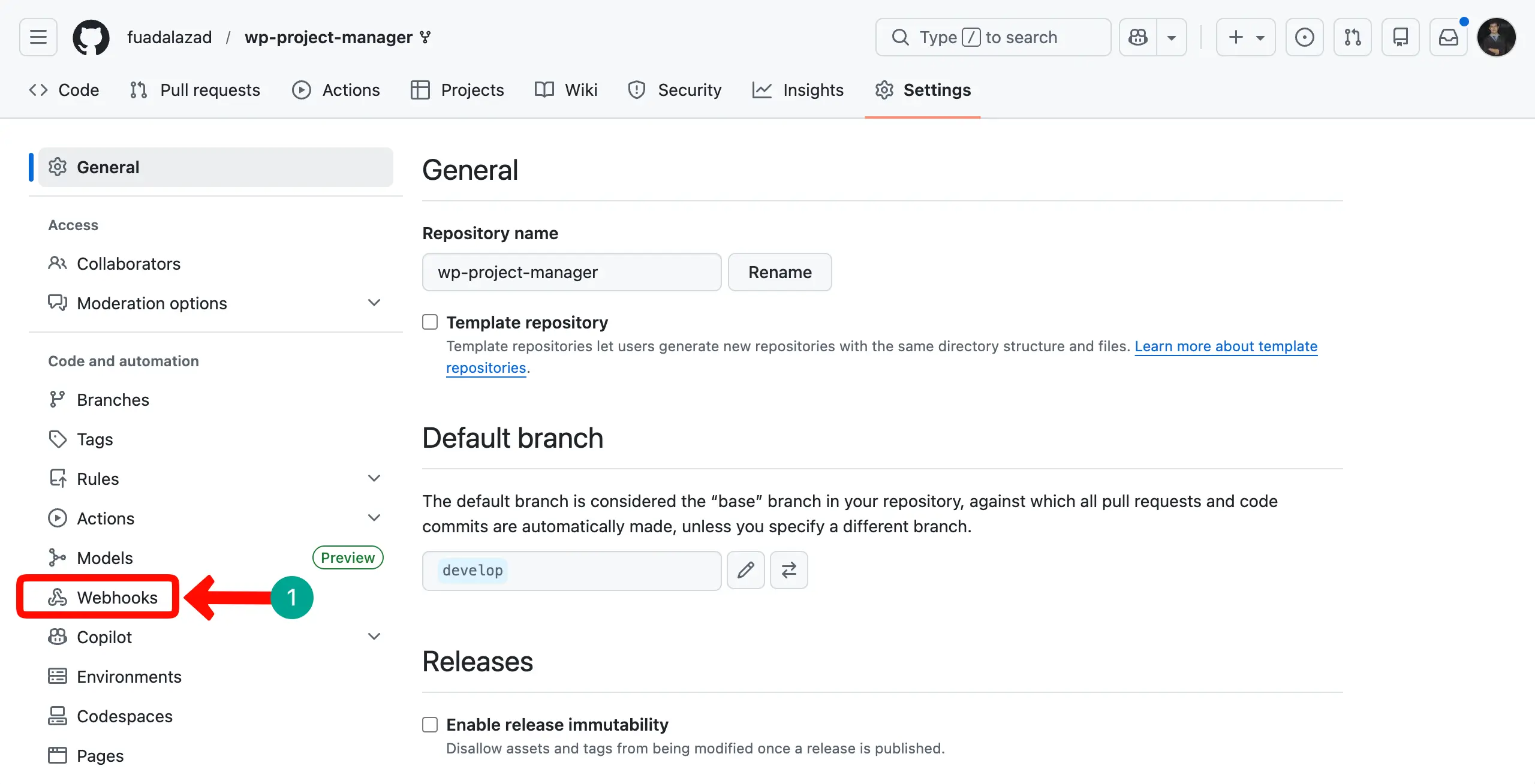
Come to the Webhooks option of the repository from the left sidebar.
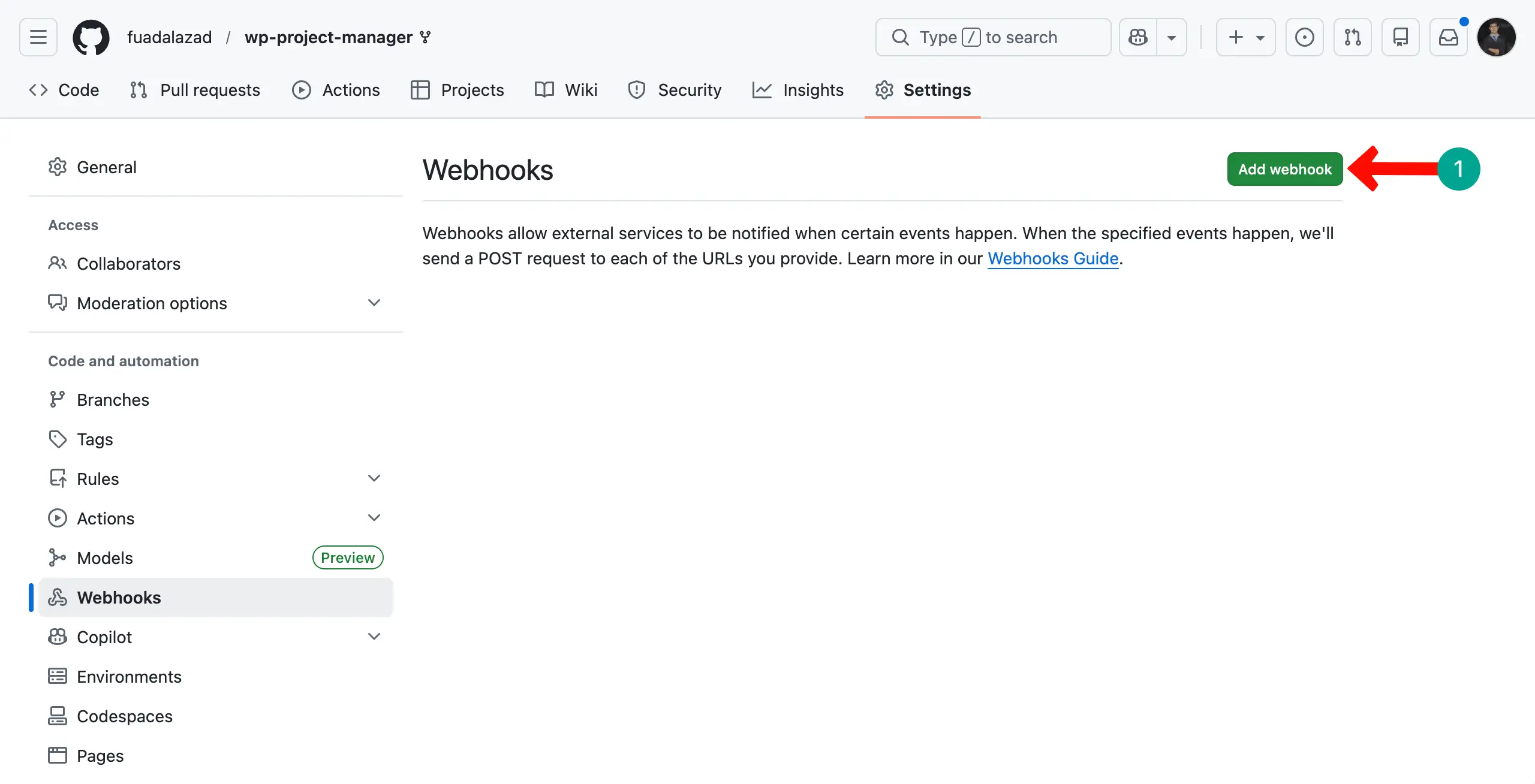
Click the green-colored Add webhook button.
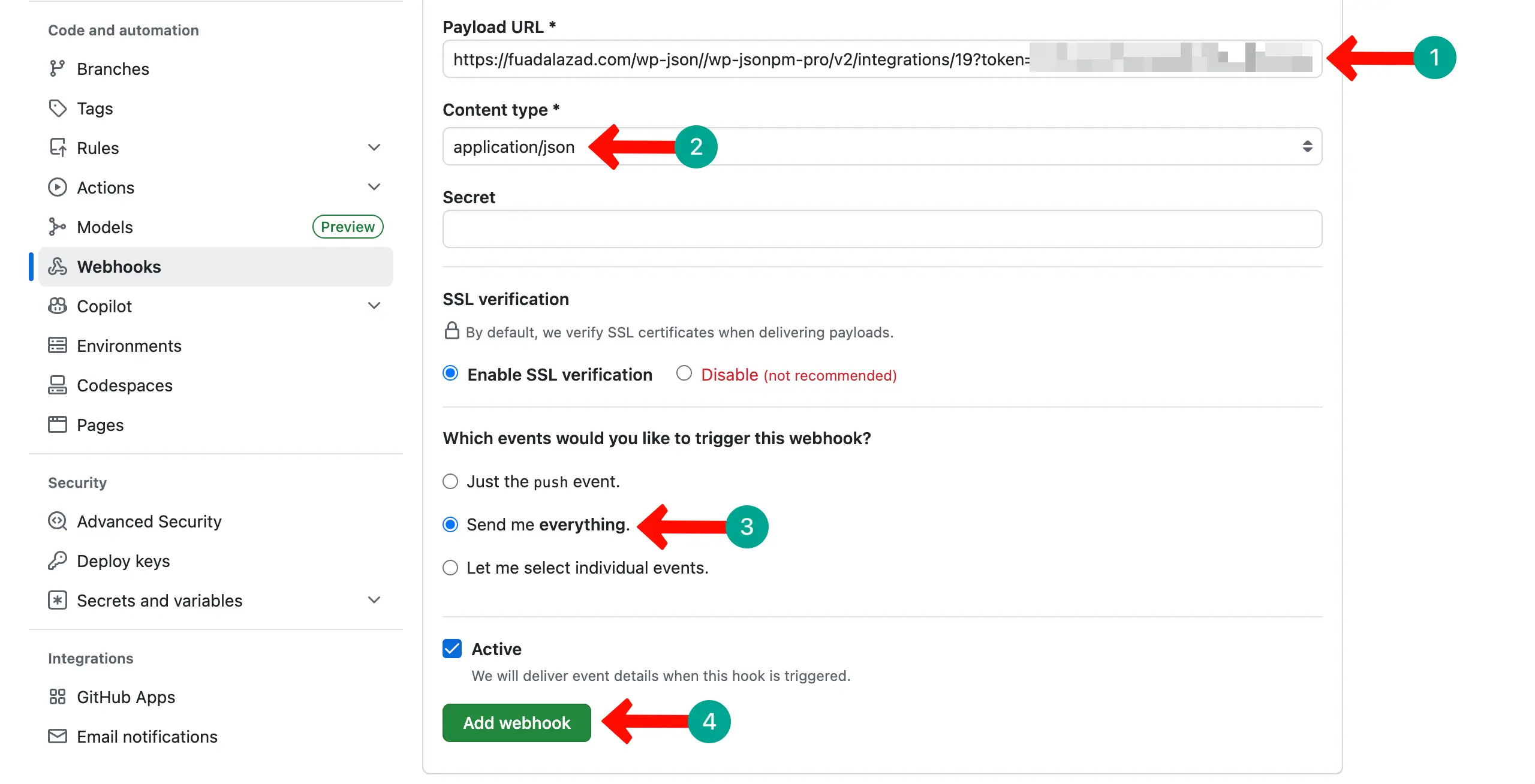
Paste the URL you copied into the Payload URL field. Select the application/json as the Content type. Choose the Send me everything option.
Finally, hit the Add webhook button.
Step 07: Check If the Integration Works
To check if the GitHub integration works or not, go to the Issues tab and create some issues.
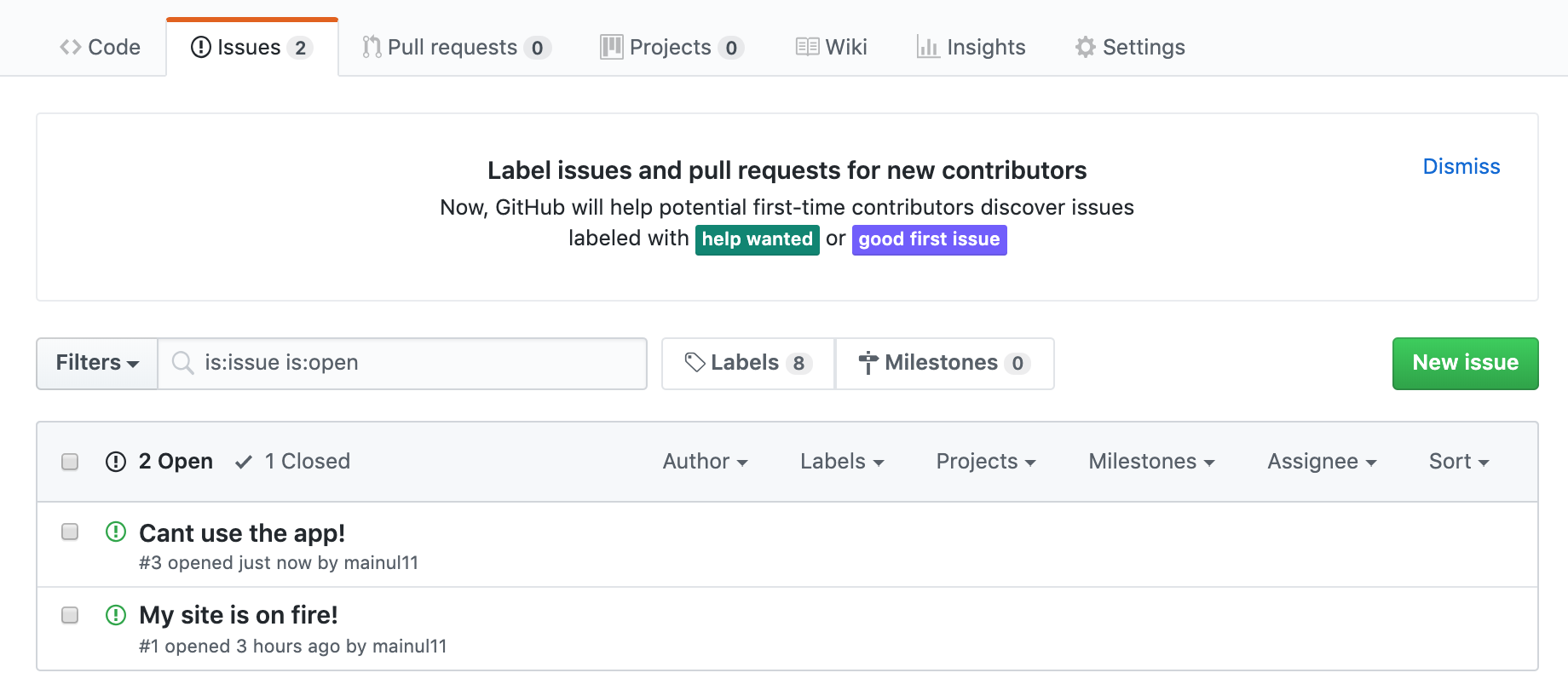
Now, when you come to your project dashboard, you'll see that those issues have automatically been sent to the project, and tasks have been created.
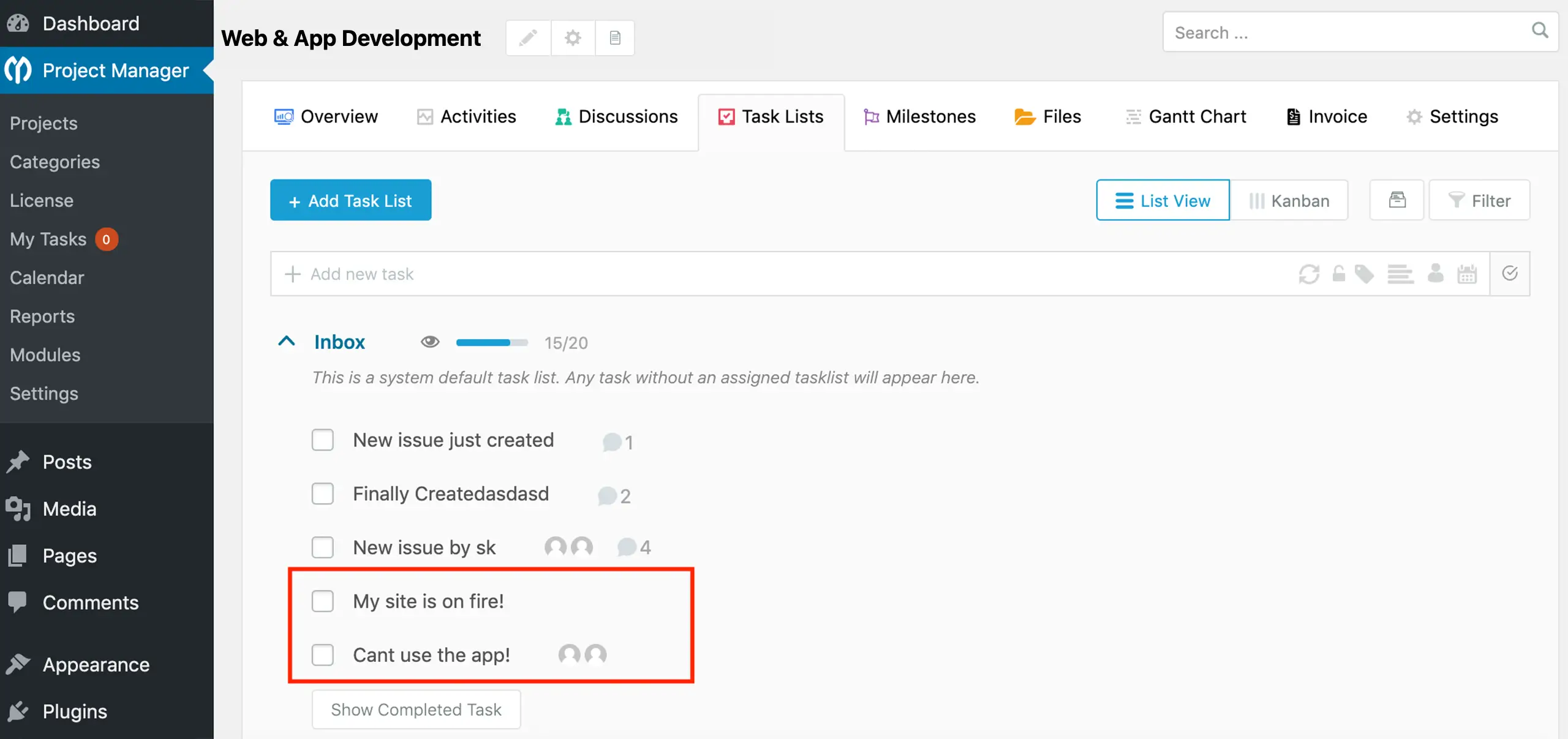
Thus, GitHub integration works with WP Project Manager.
Step 08: Integrate Bitbucket to WP Project Manager
For Bitbucket, the process is the same as well. Do all the common steps like creating an account in Bitbucket and setting up the necessary settings.
Come to Settings > Webhooks after that. Place the Webhook URL in the Title field. Choose the Issues you want to send to the project. Finally, save all the changes.
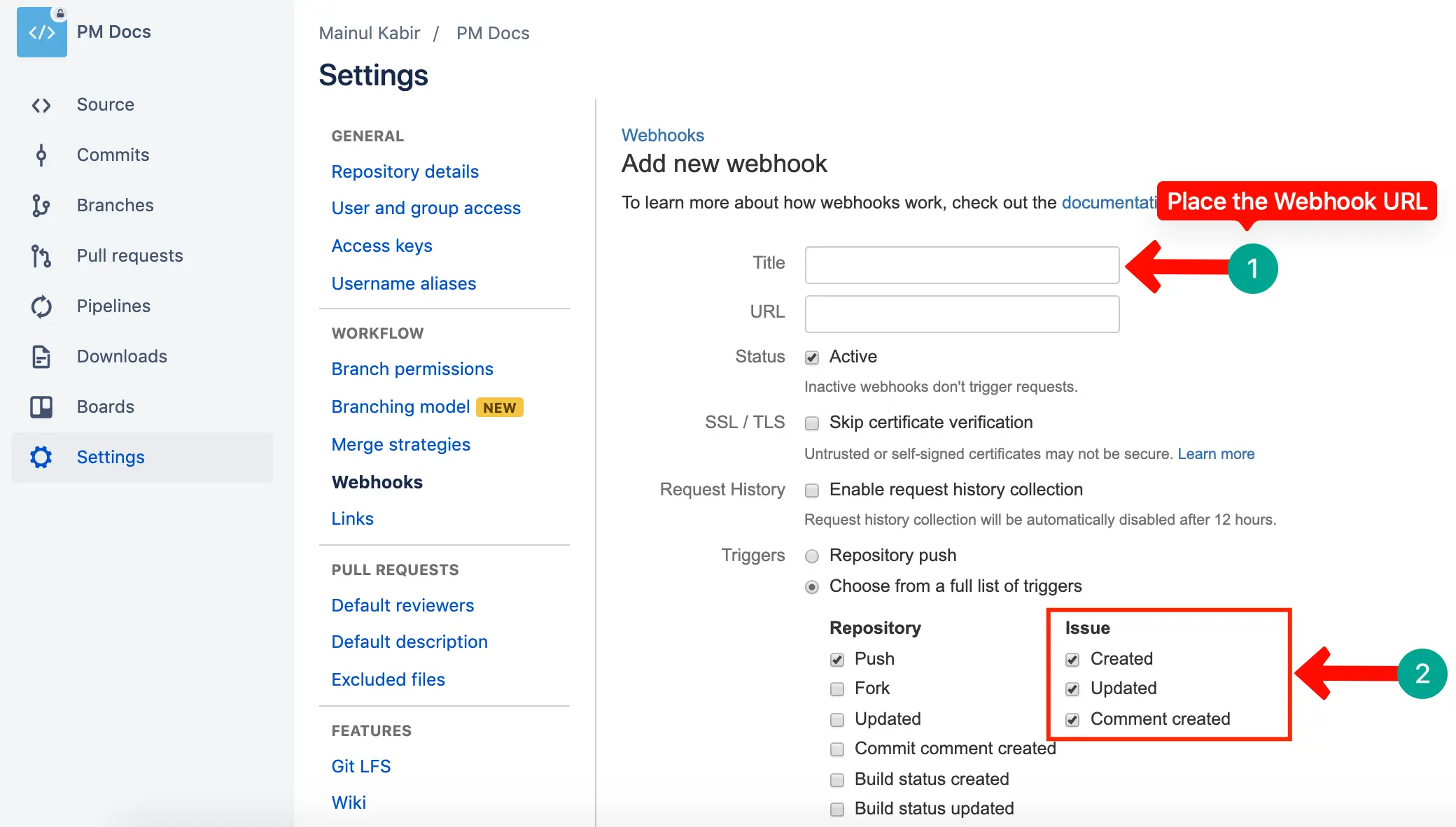
Thus, you can integrate Bitbucket with WP Project Manager.
How to Use GitHub and Bitbucket Inside WP Project Manager
Once the integration is active, your team can use it in several powerful ways. Here is how to get the most value out of the connection between your code repositories and your WP Project Manager projects every single day.
1. View Commits Inside Tasks
Open any task in WP Project Manager. If a developer has referenced that task in a commit message, you will see the commit listed inside the task under the GitHub or Bitbucket tab that now appears within the task card.
Each commit entry shows the commit message, the developer who made it, the date and time, and a link to view the full commit on GitHub or Bitbucket. Non-technical team members can understand progress without reading any code.
Check how to create task lists on WP Project Manager.
2. Track Issues with Project Tasks
When a bug is reported, create a task in WP Project Manager for it. Give it a task ID like #15. Developers can then commit bug fixes and reference #15 in their commit message so the fix shows up directly inside that task card.
This creates a clean, searchable history of every bug fix linked to a task. When someone asks, ‘Was this bug fixed?' you can open the task and immediately see exactly which commit fixed it and when the fix was pushed to the repo.
3. Monitor Development Progress
Project managers can monitor development progress with real-time reports without bothering developers. Just open the project, check the linked tasks, and see how many commits have been made. Active commits mean active development is happening right now.
If a task has had no commits linked for several days, that is a sign to check in with the developer. This visibility makes project management much smarter without requiring long status calls or check-in messages every single day.
4. Link Pull Requests to Tasks
In GitHub, when a developer opens a pull request related to a task, they can reference the task ID in the pull request description. WP Project Manager can then show that pull request directly inside the connected task for full visibility.
This is especially useful for code review workflows. Reviewers can open the task in WP Project Manager, click the linked pull request, do their review on GitHub, and then update the task status when the pull request is merged successfully.

GitHub vs Bitbucket: Which One Should You Use?
Both GitHub and Bitbucket work great with WP Project Manager. But they have different strengths. The right choice depends on your team size, project type, and what other tools you are already using in your development workflow.
Check the side-by-side table comparison.
| Feature | GitHub | Bitbucket |
|---|---|---|
| Best For | Open-source & public repos | Private teams & businesses |
| Free Private Repos | Yes (unlimited) | Yes (up to 5 users) |
| CI/CD Built-In | GitHub Actions | Bitbucket Pipelines |
| Pull Requests | Yes | Yes |
| Issue Tracker | Yes (built-in) | Yes (Jira integration) |
| Community Size | Very large (100M+ users) | Medium (10M+ users) |
| Auth Method for WP PM | Personal Access Token | App Password or OAuth |
| Pricing | Free + paid plans | Free + paid plans |
| Recommended When | Team is public or open-source focused | Team is private, Jira users, or Atlassian stack |
Use Cases for GitHub
GitHub is the best choice if your project is open source or if your team likes a large community of tools and integrations. GitHub has more third-party integrations, more public resources, and the largest developer community in the world.
- Open-source WordPress themes, plugins, or frameworks are being built publicly
- Teams already using GitHub Actions for automated testing and deployment pipelines
- Developers who want to showcase their work on a public profile for jobs or freelance work
- Projects that need a large ecosystem of integrations and marketplace extensions
Use Cases for Bitbucket
Bitbucket is the best choice for teams already using other Atlassian products like Jira or Confluence. The Jira and Bitbucket integration is very powerful and makes issue tracking across projects extremely smooth.
- Private business projects where code privacy is a top priority for the company
- Teams already using Jira for issue tracking and wanting native Jira-Bitbucket integration
- Small teams of five or fewer who want free private repositories with no monthly cost
- Teams that prefer Bitbucket Pipelines as a built-in CI/CD solution for their builds
When to Use Both GitHub and Bitbucket at the Same Time
You can connect both GitHub and Bitbucket to WP Project Manager at the same time. Some teams keep public-facing code on GitHub and private or client code on Bitbucket. WP Project Manager supports multiple repository connections at once.
For example, a WordPress agency might store open-source plugins on GitHub for community use. At the same time, they store private client project code on Bitbucket. Both repositories can link to different projects inside WP Project Manager.
Frequently Asked Questions (FAQ)
Here are the most commonly asked questions about WP Project Manager and its GitHub and Bitbucket integration. These answers are written in simple words to help everyone understand, including those who are new to these tools.

WP Project Manager is a WordPress plugin used for managing projects, tasks, and team collaboration directly inside your WordPress dashboard. It is used by developers, agencies, freelancers, and businesses to organize and track their project work efficiently.
Yes, you can connect both GitHub and Bitbucket to WP Project Manager at the same time. You can link different repositories from each platform to different projects. This is useful for teams that use both platforms for different types of work.
Basic coding knowledge is helpful but not required for the integration steps. The setup process involves clicking settings and pasting tokens — no coding needed. However, to use the integration effectively, your developers still need to include task IDs in their commit messages.
The GitHub and Bitbucket integration is available in WP Project Manager Pro, which is a paid plan. The free version of WP Project Manager does not include repository integrations. Check the weDevs website for current pricing and plan details before purchasing.
The connection uses personal access tokens or app passwords with limited scopes, which means WP Project Manager only gets read access to your repositories. It does not have write access. Your code is safe and cannot be modified through the integration.
Final Thoughts
Integrating GitHub or Bitbucket with WP Project Manager is one of the smartest things a development team can do. It removes the gap between code and project management and brings everything into one clear, organized workspace.
Your developers stay focused on writing code. Your project managers always know what is happening. Your clients get better and more accurate updates. Everyone works smarter because all the important information is in one connected place.
Setting it up takes less than 30 minutes if you follow this guide step by step. Once it is done, your team will wonder how they ever managed projects without this integration. It truly changes how development projects get managed.
Start with whichever platform your team already uses — GitHub or Bitbucket. Get the integration working. Then use the best practices in this guide to build great habits. Better habits always lead to better projects in the long run.

