

How to Fix the “jQuery is not defined” Error in WordPress
jQuery powers approximately 80% of websites, making it a cornerstone for interactive and dynamic web functionality. If your WordPress site relies on jQuery, you might come across the “Uncaught ReferenceError: jQuery is not defined” error at some point.
This error signals that your website cannot access the jQuery library, potentially causing certain features or elements to stop working as intended.
This issue is common but manageable. In this article, we’ll explore four effective methods to resolve it for WordPress users.
Possible Reasons Behind WordPress “jQuery is not defined” Error
jQuery is not defined” is a common WordPress error that occurs when a website calls for a jQuery function before the library properly loads. Possible causes include conflicting plugins, a corrupted jQuery file, a blocked CDN, or your JavaScript code loads incorrectly.”
The “jQuery is not defined” error in WordPress can occur due to the following reasons:
- jQuery is Not Enqueued Properly: When jQuery is not properly enqueued using WordPress’s standard methods.
- Incorrect Script Loading Order: Scripts that depend on jQuery are loaded before the jQuery library itself.
- Conflict with jQuery NoConflict Mode: WordPress loads jQuery in no-conflict mode, which can cause issues if scripts use
$as shorthand without defining it. - jQuery Library is Not Loaded: If a theme or plugin deregisters or fails to load the jQuery library entirely.
- Cached JavaScript Files: Outdated or cached JavaScript files from a caching plugin can trigger the error.
- CDN Issues: If a CDN used for loading jQuery is down or has an invalid URL.
- Theme or Plugin Conflict: Poorly coded themes or plugins may deregister jQuery or cause conflicts.
- jQuery Version Mismatch: A plugin or theme may require a different version of jQuery than the one provided by WordPress.
- Improper Loading in the Footer: If jQuery is loaded in the footer, but a dependent script is loaded in the header.
These are the most common reasons behind WordPress's “jQuery is not defined” Error.
Now we are going to show you how you can fix this issue, using various methods.
10+ Methods to Fix the WordPress jQuery Is Not Defined Error
Now that you understand how the “Uncaught ReferenceError: jQuery is not defined” error occurs, it’s time to debug your WordPress website. Below, we’ll explore four solutions to resolve this issue.
Important: Before starting the debugging process, make sure to back up your website. This ensures that your data remains safe in case anything goes wrong.
- Add a Snippet to the wp-config.php File
- Include Google-Hosted jQuery With an Alternate Fallback
- Add the jQuery Library Manually
- Make Sure jQuery Is Loaded
- Use the wp_enqueue_script Function Properly
- Disable Conflicting Plugins or Themes
- Check for JavaScript Errors in the Console
- Clear Cache and Minify Scripts Correctly
- Update WordPress, Themes, and Plugins
- Add SCRIPT_DEBUG in wp-config.php
- Check for External Resources or CDNs
- Test on a Staging Environment
- Revert to a Default Setup
Now, lets see the details.
1. Add a Snippet to the wp-config.php File
The most effective way to resolve the “jQuery is not defined” error is by defining the file path (ABSPATH) in the WordPress core file. To do this, add the following snippet to the wp-config.php file using a File Manager or an FTP client like FileZilla:
/** Absolute path to the WordPress directory. */

if ( !defined('ABSPATH') )

define('ABSPATH', dirname(__FILE__) . '/');

define('CONCATENATE_SCRIPTS', false);
2. Include Google-Hosted jQuery With an Alternate Fallback
Setting a fallback is an effective way to address CDN loading issues. If the selected CDN becomes unavailable, the server can use a cached version of jQuery to ensure the site continues to function smoothly.
// Fall back to a local copy of jQuery if the CDN fails

<script>

window.jQuery || document.write('<script src="http://mysite.com/jquery.min.js"><\/script>'))

</script>
3. Add the jQuery Library Manually
If the previous solutions don’t resolve the jQuery error, you can try adding the jQuery library directly to your header.php file. This can be done through your WordPress hosting platform. Here’s how to do it using Hostinger’s File Manager:
- Visit the Google Hosted Libraries and copy the CDN code snippet for the latest jQuery release. For example, the snippet for version 3.x is:
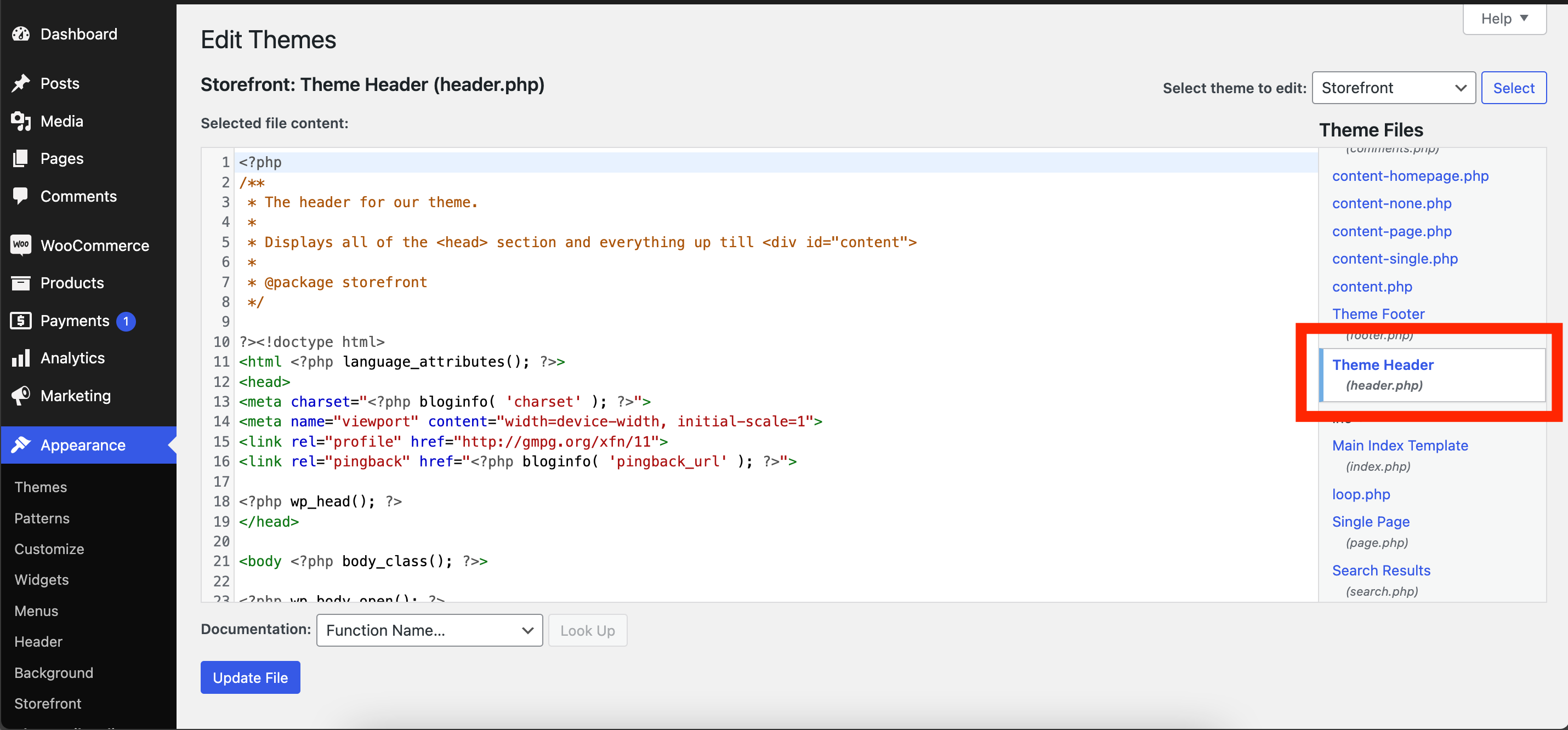
<script src="https://ajax.googleapis.com/ajax/libs/jquery/3.6.0/jquery.min.js"></script>- Locate the header.php file in your theme folder.
- Open the file and paste the code snippet you obtained in the first step right below the <head> tag.
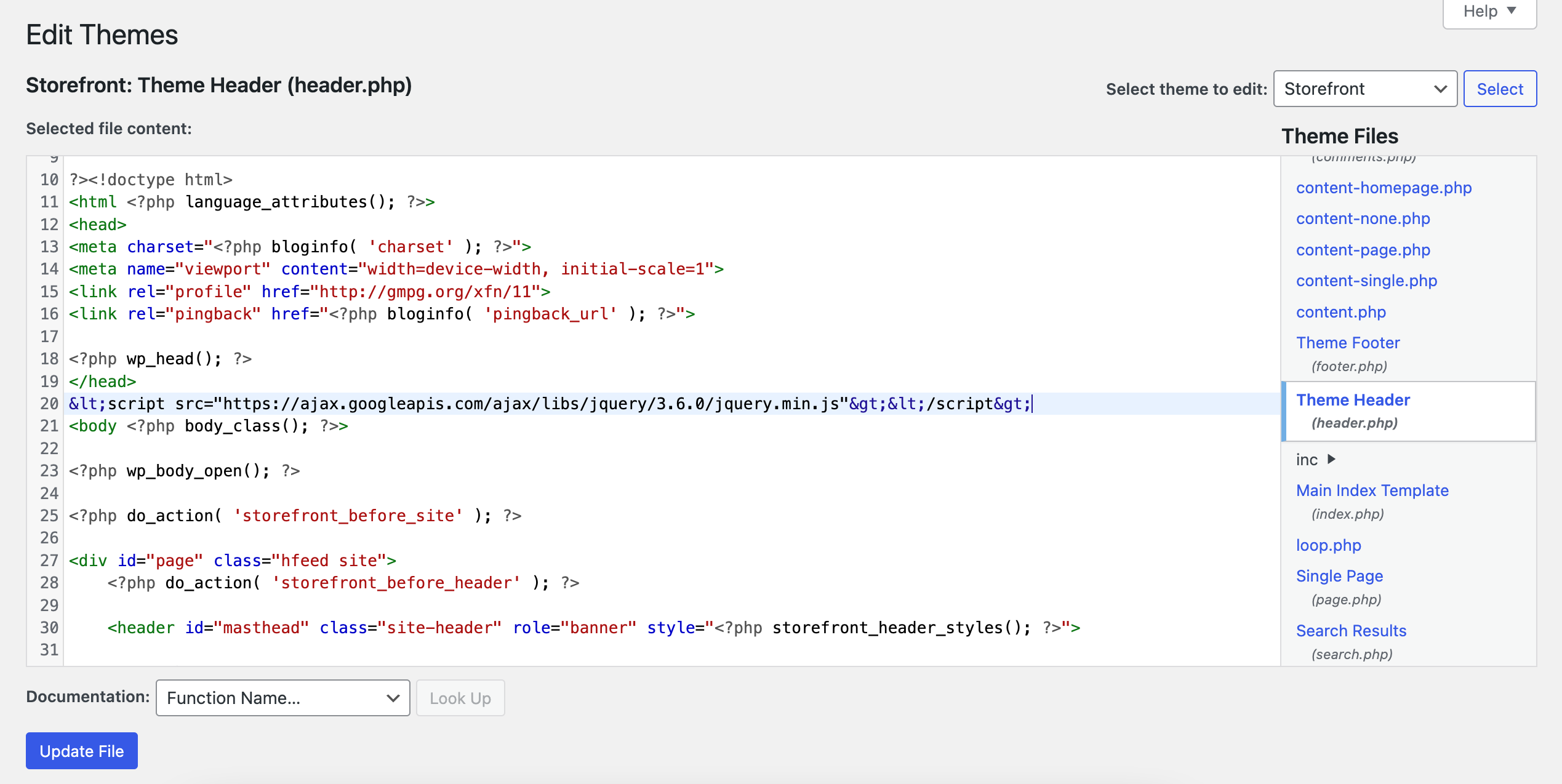
- Save the changes made.
4. Make Sure jQuery Is Loaded
If jQuery is already included in your website files, the “Uncaught ReferenceError: jQuery is not defined” error might occur because the code isn’t loading properly.
To resolve this, double-check the source code of the specific WordPress page and ensure the <script src=""> tag is correctly placed in the header. You can speed up this process by using your browser's Inspect Element tool to locate the snippet quickly.
Here are some examples of the source code to look for:
<script src="/js/jquery-3.6.0.min.js" type="text/javascript"></script><script src="https://ajax.googleapis.com/ajax/libs/jquery/3.6.0/jquery.min.js"></script>If the snippet refers to a file name, ensure it is spelled correctly and matches the actual file path. If it references a URL for the jQuery library, copy and paste the URL into a browser to verify that it loads properly.
Yes, there are additional ways to fix the “jQuery is not defined” error in WordPress apart from the four methods mentioned. Here are some alternatives:
5. Use the wp_enqueue_script Function Properly
Ensure all scripts that depend on jQuery are enqueued using WordPress's built-in wp_enqueue_script function with jQuery specified as a dependency. This helps maintain the correct loading order.
6. Disable Conflicting Plugins or Themes
A conflicting plugin or theme can deregister or load jQuery incorrectly. Temporarily deactivate all plugins and switch to a default theme (e.g., Twenty Twenty-Three) to identify the source of the conflict.
7. Check for JavaScript Errors in the Console
Use browser developer tools to inspect the error and locate the script causing the issue. This can help in pinpointing the exact problem.
8. Clear Cache and Minify Scripts Correctly
Clear your WordPress caching plugin’s cache, as cached or minified JavaScript files can cause jQuery-related issues. Ensure that JavaScript minification tools are configured to handle dependencies correctly.
9. Update WordPress, Themes, and Plugins
Ensure that your WordPress installation, themes, and plugins are up-to-date, as outdated versions may not be compatible with the latest jQuery version.
10. Add SCRIPT_DEBUG in wp-config.php
Enable script debugging by adding the following line to your wp-config.php file. This forces WordPress to load unminified versions of scripts, which can help in troubleshooting:
define('SCRIPT_DEBUG', true);
11. Check for External Resources or CDNs
If your theme or plugin relies on a CDN to load jQuery, ensure the CDN link is correct and functional. Alternatively, switch to the default WordPress jQuery library to avoid CDN-related issues.
12. Test on a Staging Environment
Create a staging environment to test changes and diagnose issues without affecting the live site. This allows safe experimentation to resolve the error.
13. Revert to a Default Setup
If all else fails, revert to a fresh WordPress installation with default settings. Rebuild customizations step by step while ensuring jQuery is properly enqueued.
These additional strategies complement the existing methods and can help effectively resolve the “jQuery is not defined” error.

Hopefully, these fixes will help you overcome this error.
Last Words
Fixing the “jQuery is not defined” error in WordPress is essential to ensure your site's functionality and user experience remain seamless. While this error can seem daunting at first, understanding its causes and applying the right solutions can quickly resolve it.
From properly enqueuing scripts to clearing caches and addressing plugin conflicts, there are multiple ways to address this issue. By following the methods outlined in this article, you can troubleshoot and fix the error effectively, minimizing downtime and maintaining your website's performance.
If the issue persists despite trying these solutions, consider seeking help from a WordPress developer or your hosting provider’s support team. Ensuring that jQuery is loaded correctly will keep your site running smoothly and deliver a better experience for your visitors.

